Feed Back Form
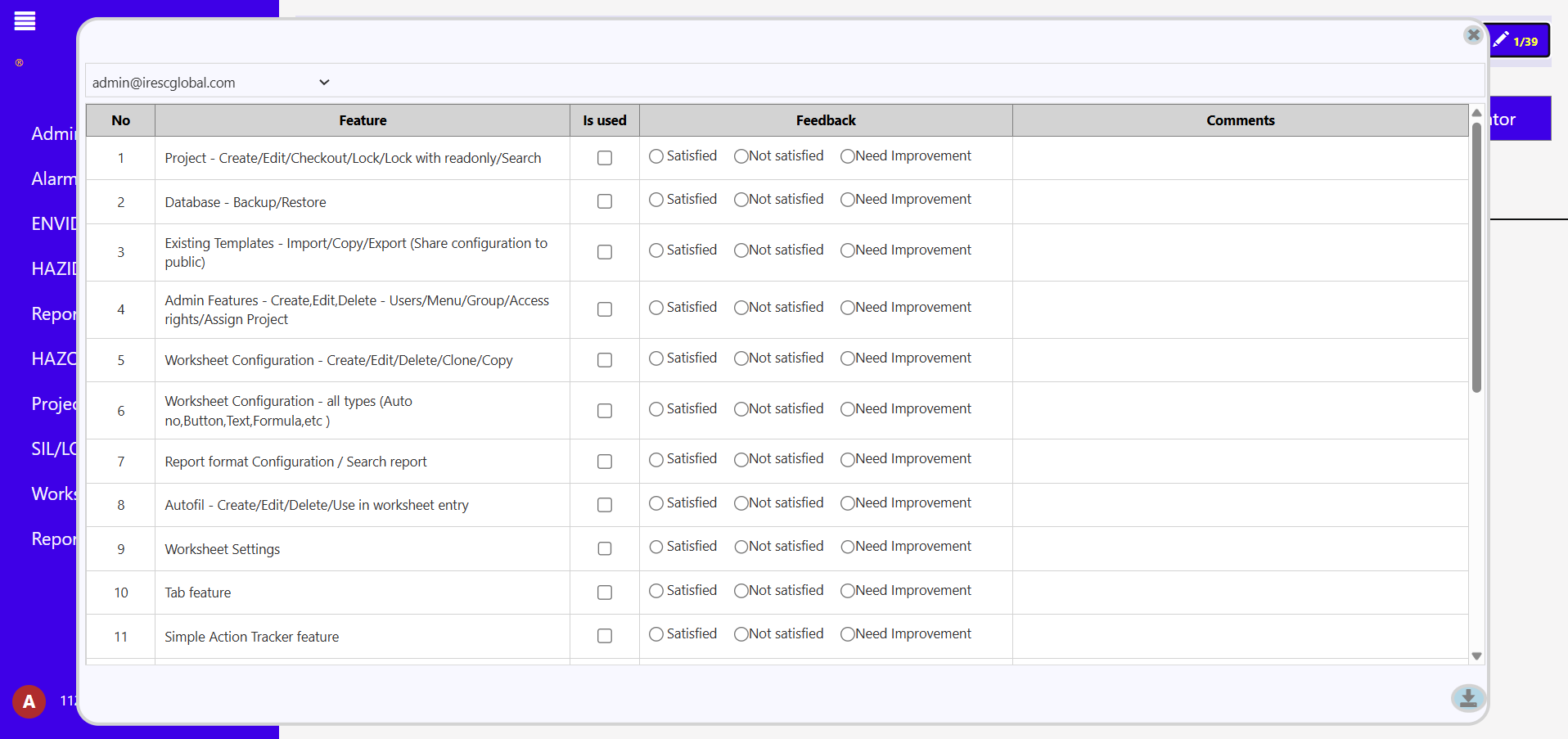
Login to Haz360 website select required project In the project screen, right top corner button available for enter feedback It shows with

Login to Haz360 website select required project In the project screen, right top corner button available for enter feedback It shows with
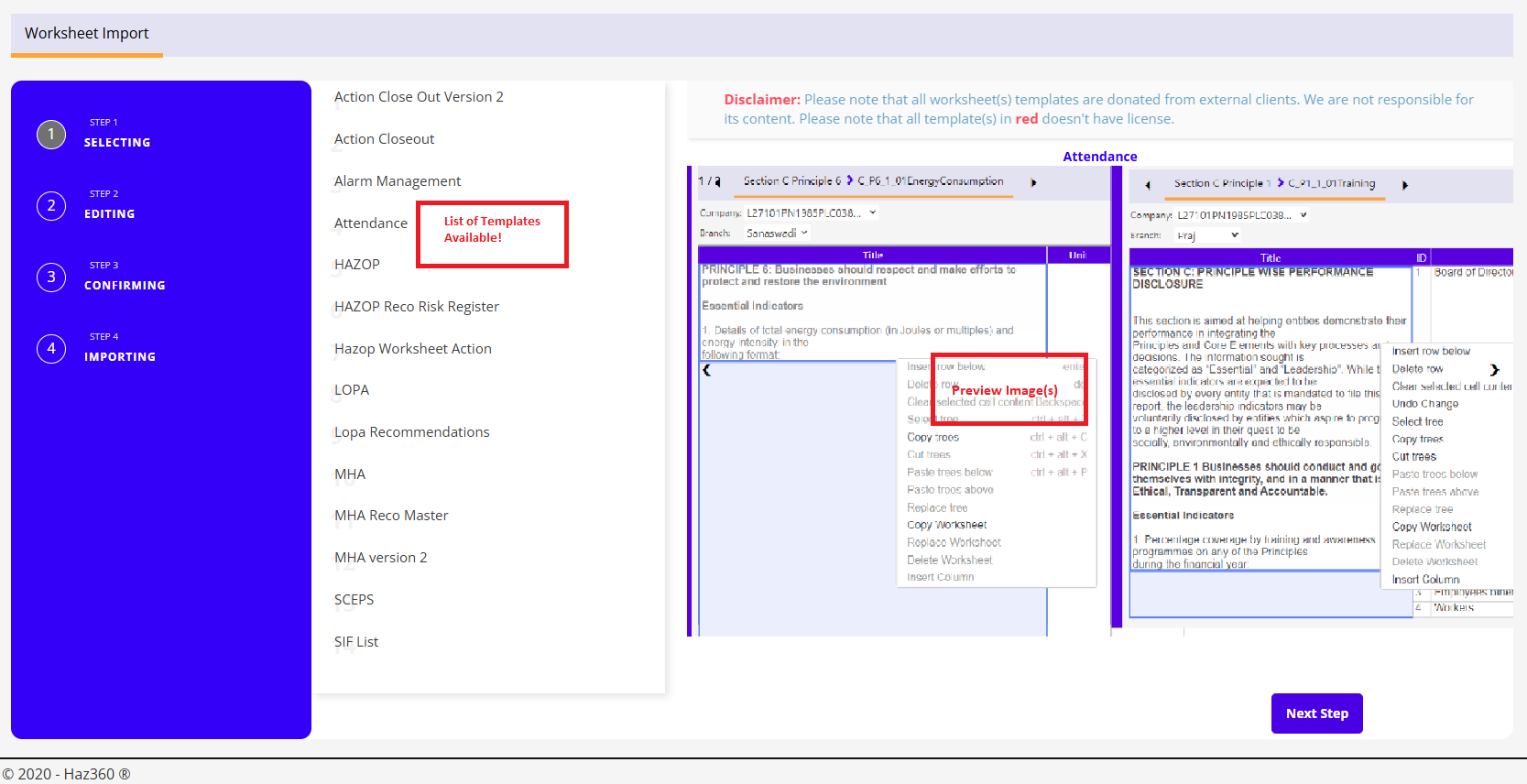
“Edit” icon in “Project List” will provide more details about project and its available features. To Copy(from your projects)/Import(from Haz360) Worksheet Template(s)

“Edit” Icon in “Project List” will provide more details about project and its available features. Screen below will be displayed to edit
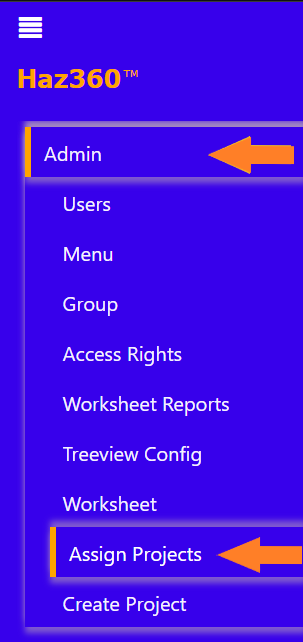
To assign users to a project as an admin, follow the steps given below: Navigate to the ‘Admin’ tab on the screen’s
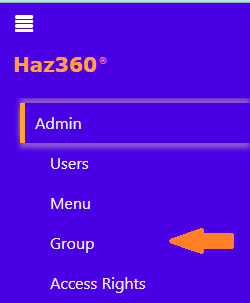
To Create/Edit the Group/Role, follow the steps given below: Under the ‘Admin’ tab, select ‘Group’. The below screen will be displayed. Click
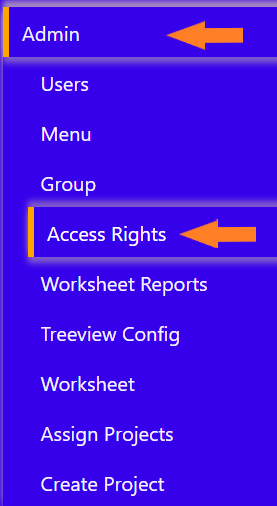
How provide Access Rights for Worksheet for different user groups/Individuals? Access rights are provided to different user groups (Admin, Release 2.0, guest
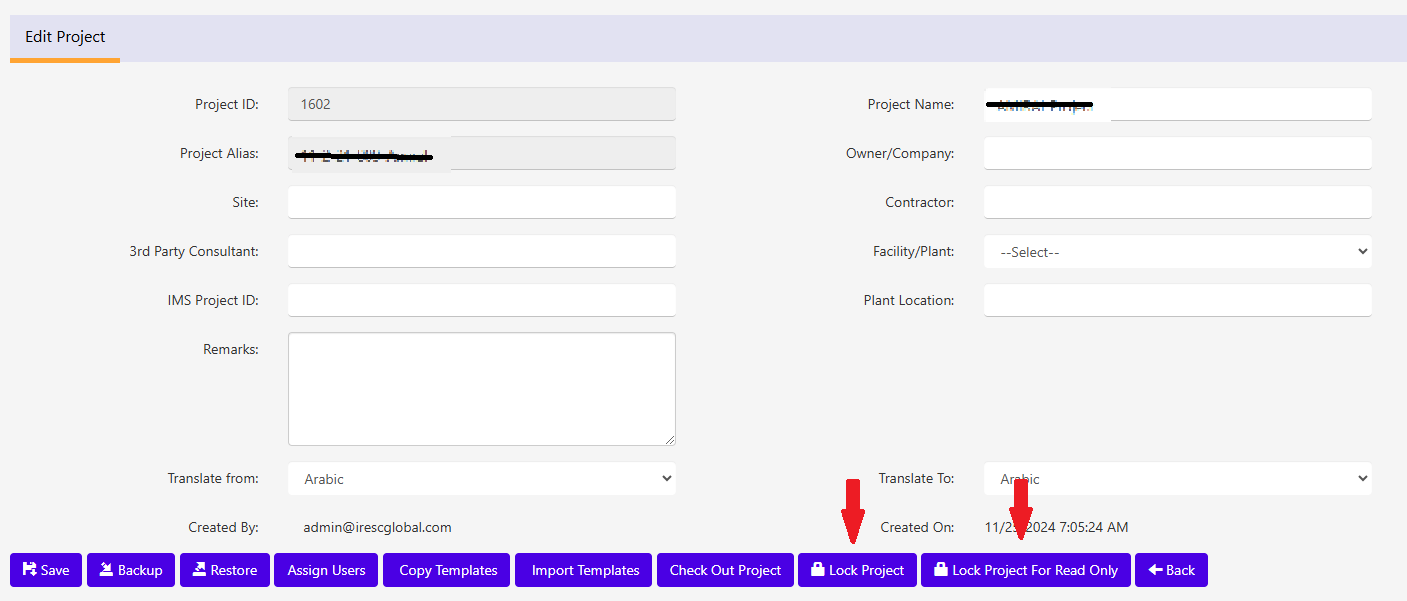
“Edit” in “Project List” will provide more details about project and its available features. To do “backup”, click “Lock Project”/”Lock Project for

Worksheet view will be displayed as below. On Worksheet View Select the Filter(Level) to Lock/Unlock and press the “Lock/Unlock” button on top.
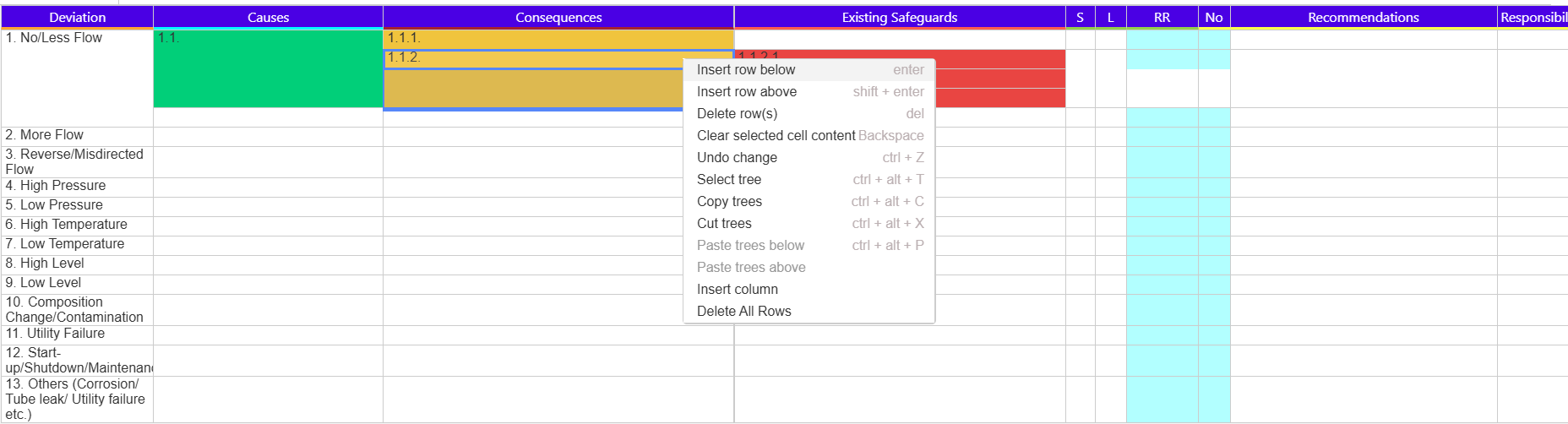
Basic Data Entry/Edit can use the below key board shortcuts or context menu(on right click). Insert Row Above/Below Insert Row, will insert
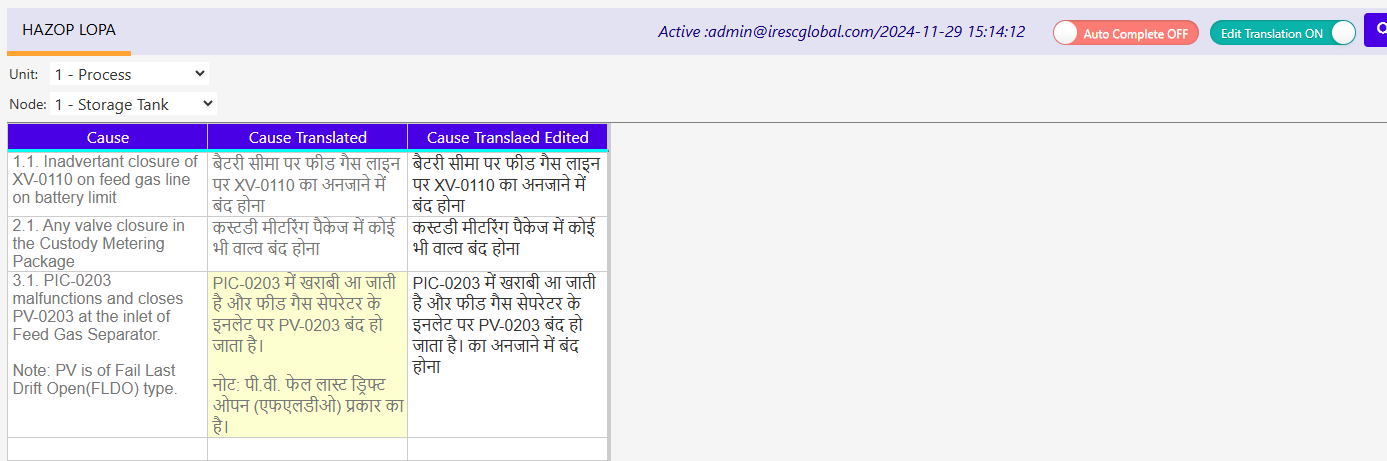
Worksheet that has configured for translation The worksheet that has translation configuration will have on/off switch as “Edit Translation OFF ” like