Worksheet – Auto Complete
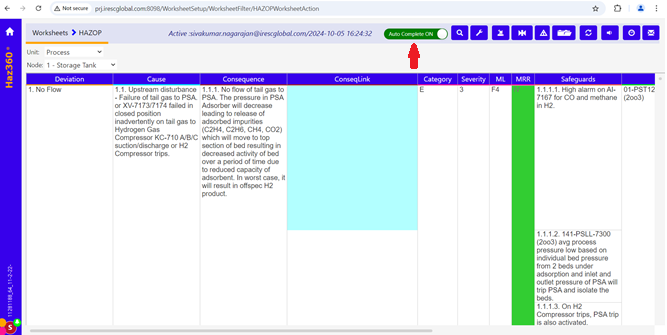
For enabling auto complete, below configuration need to be done · Go to Tree view config and create new worksheet with name

For enabling auto complete, below configuration need to be done · Go to Tree view config and create new worksheet with name
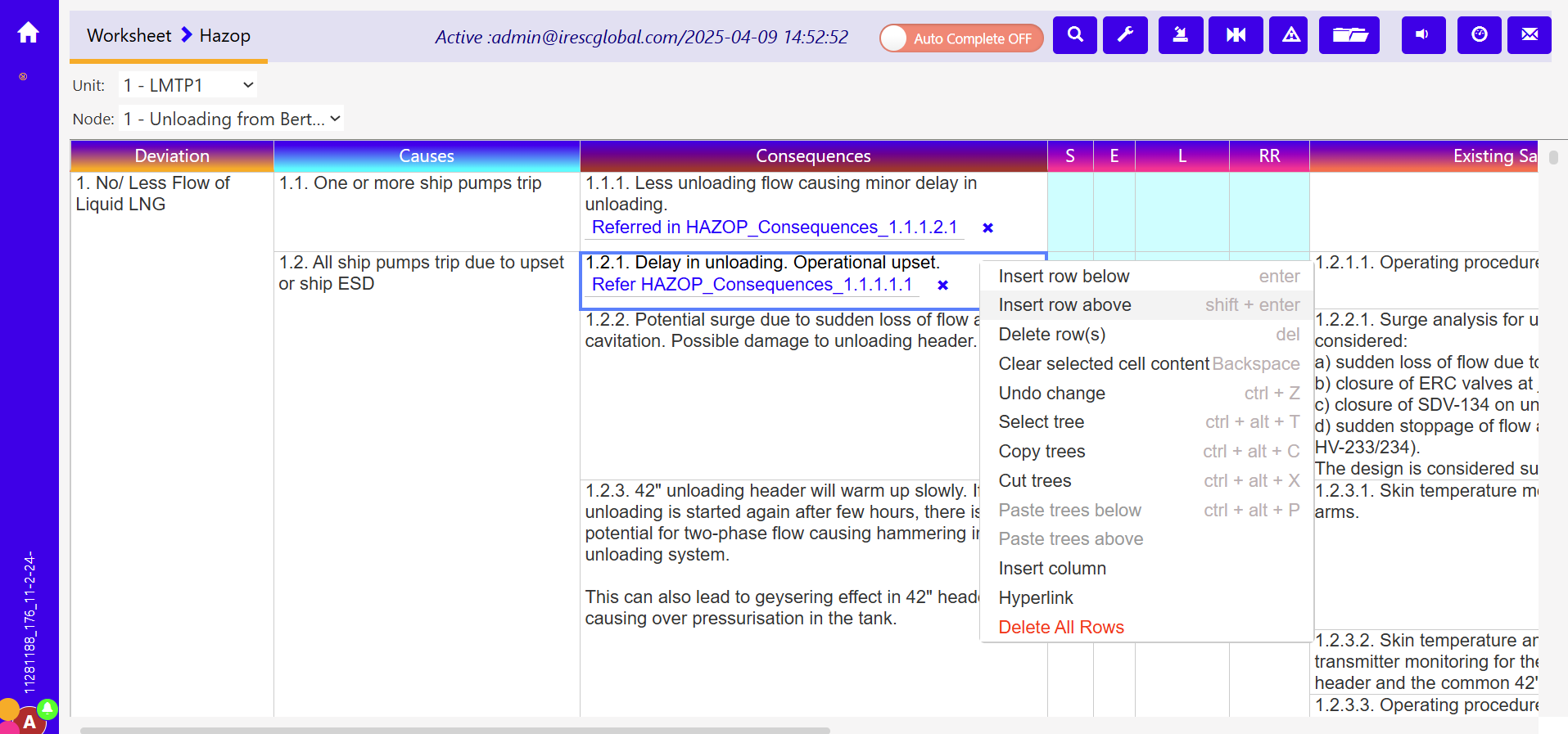
Right click required field and select “Hyperlink”. For non-rich text type it won’t shown Hyperlink popup window loaded with worksheet names

To enable/start the feature in worksheet click the “Recording On”” icon on top of the screen as shown below. The icon will
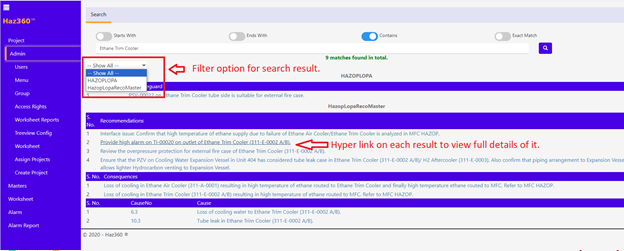
· The Global Search icon is available as shown below. Screen like below will be displayed on clicking the search icon. With
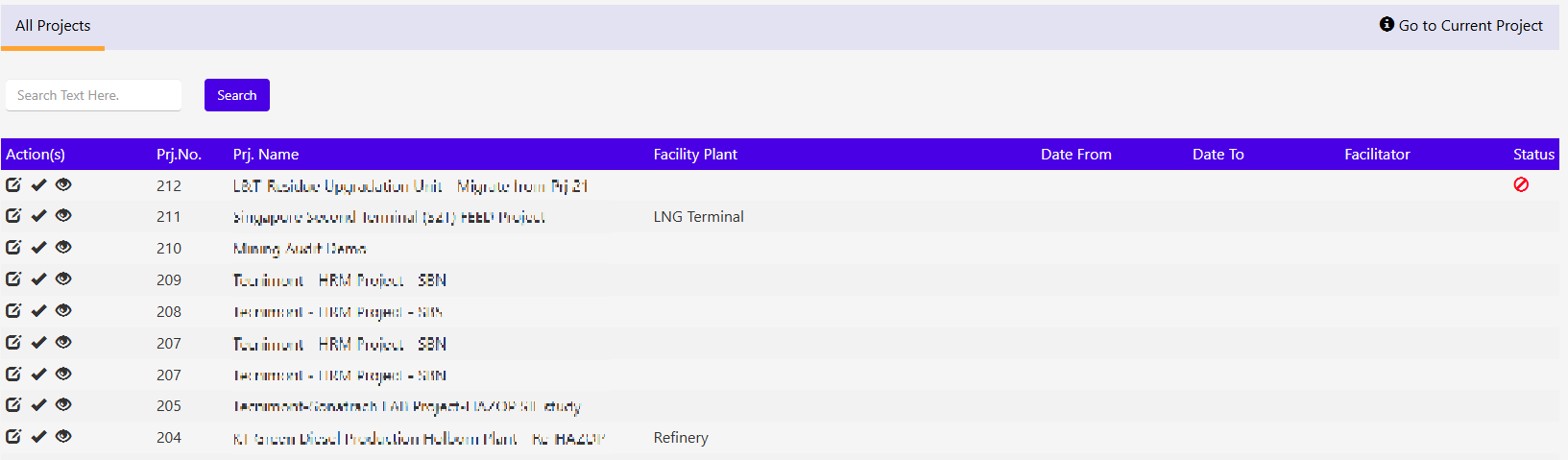
User can search the project details by clicking “View Other Projects” as shown in below screen. Screen like below will be available.
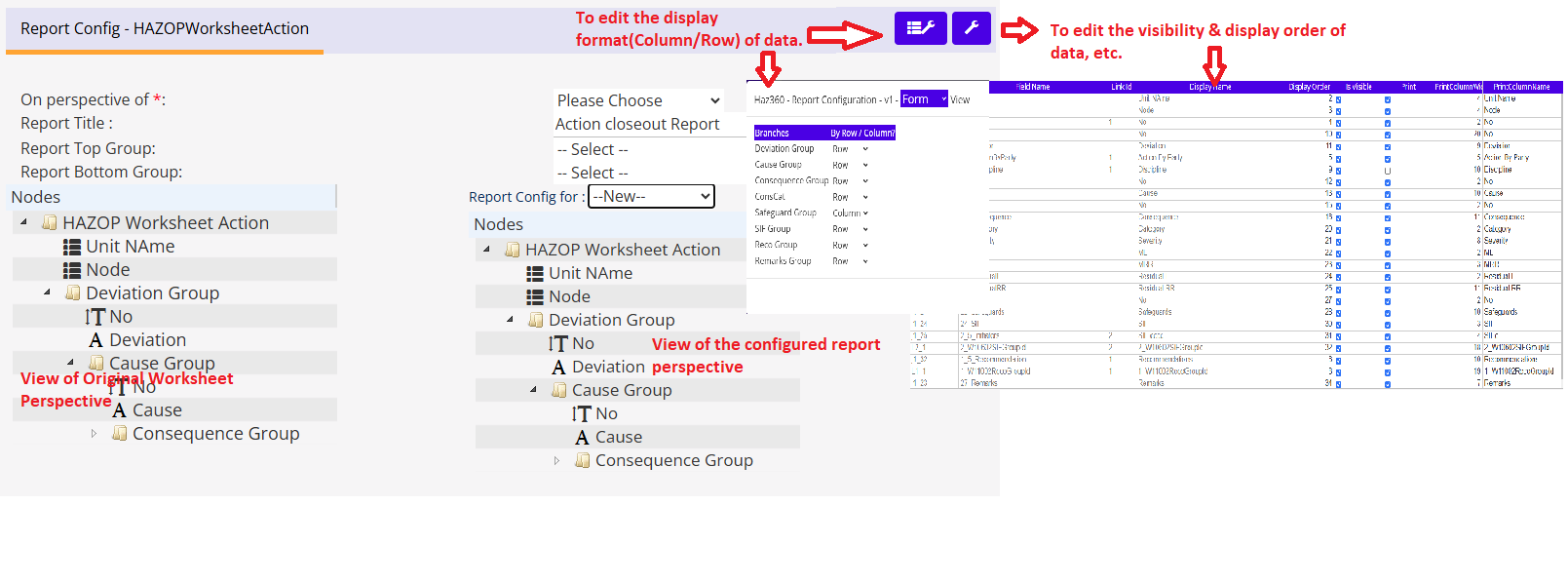
STEPS – CREATING CONFIG FOR NEW REPORT User should follow below steps to setup report configuration in Haz360 worksheet(s). Go to print

Click below shown icon in Worksheet configuration screen. Screen like below will be displayed. The LHS will show the list of worksheet(s)

· Login to Haz360 website and load Tree view Config and select needed worksheet. Selected worksheet should have at least one date
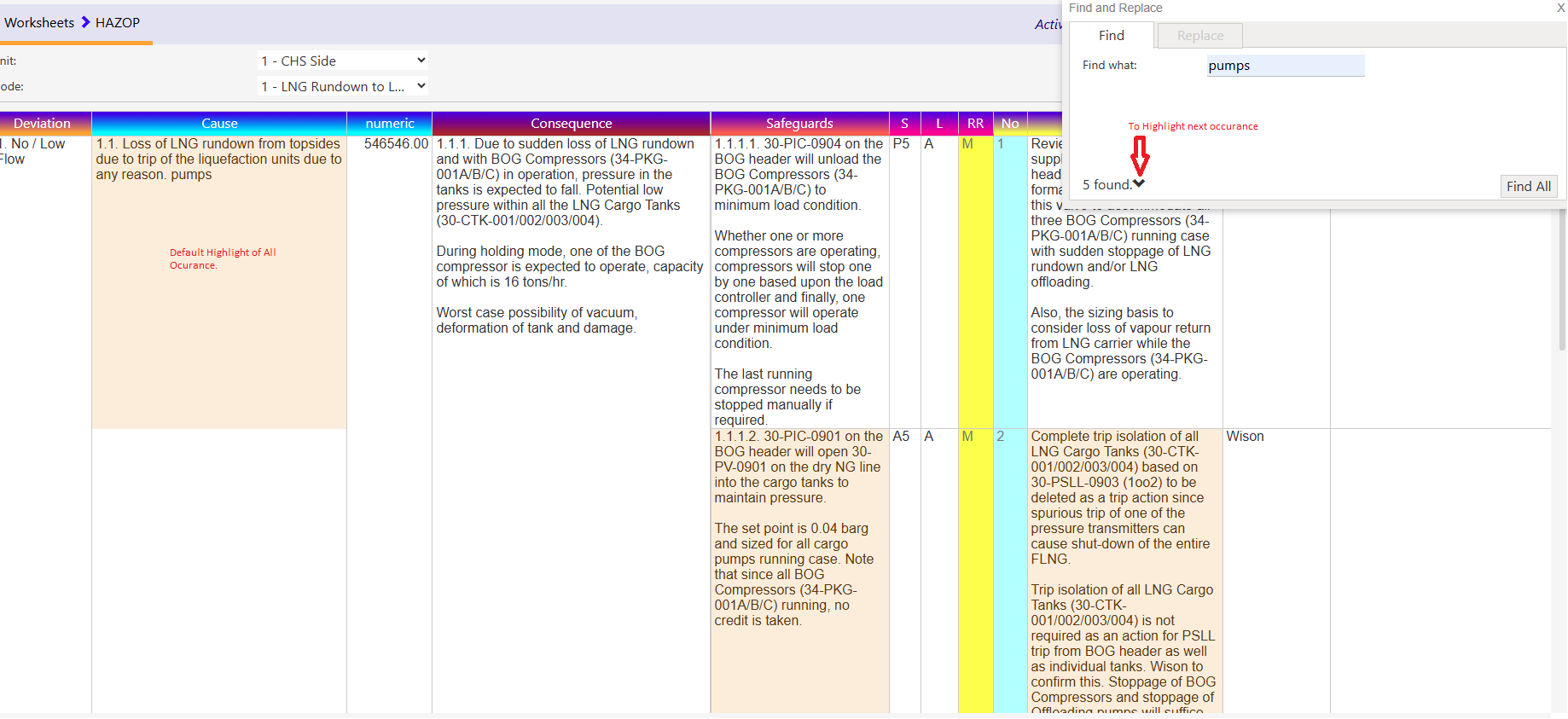
This Worksheet search scope is with in “On display data” On pressing Ctrl+F(Only on Worksheet screens), you can see the below pop-up

This feature allows the user to enter comment for each data on worksheet. On right clicking any cell on the worksheet you