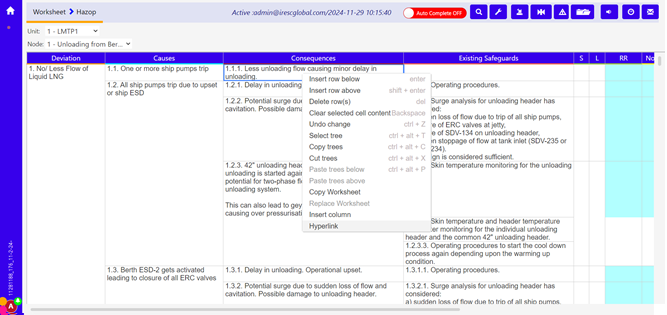
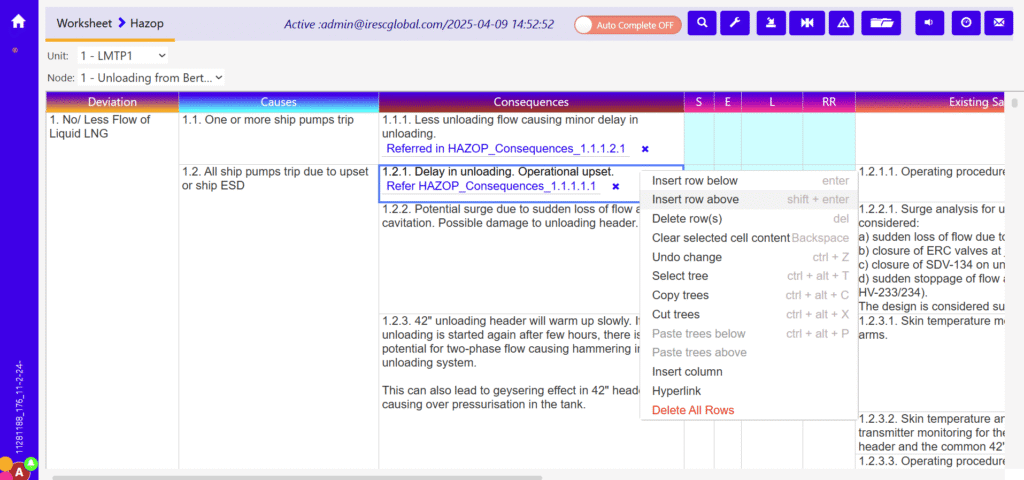
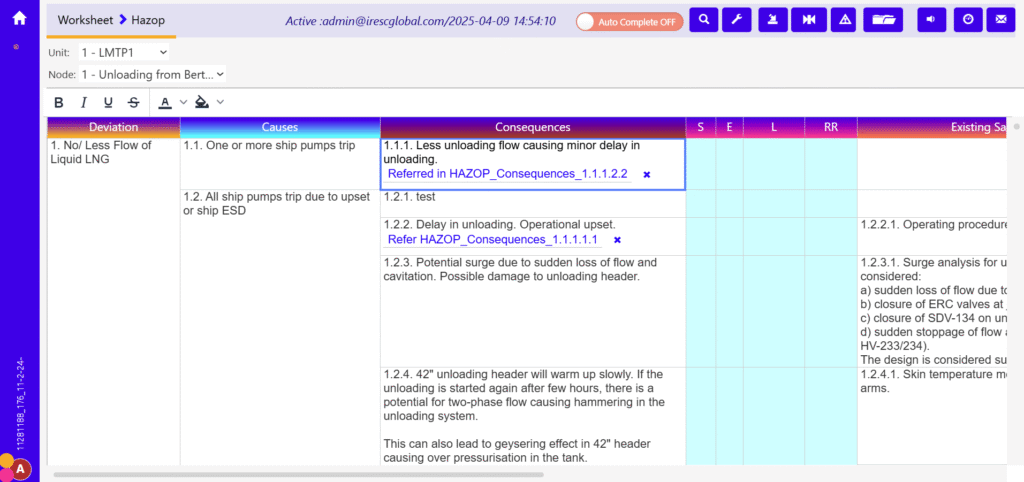
Right click required field and select “Hyperlink”. For non-rich text type it won’t shown
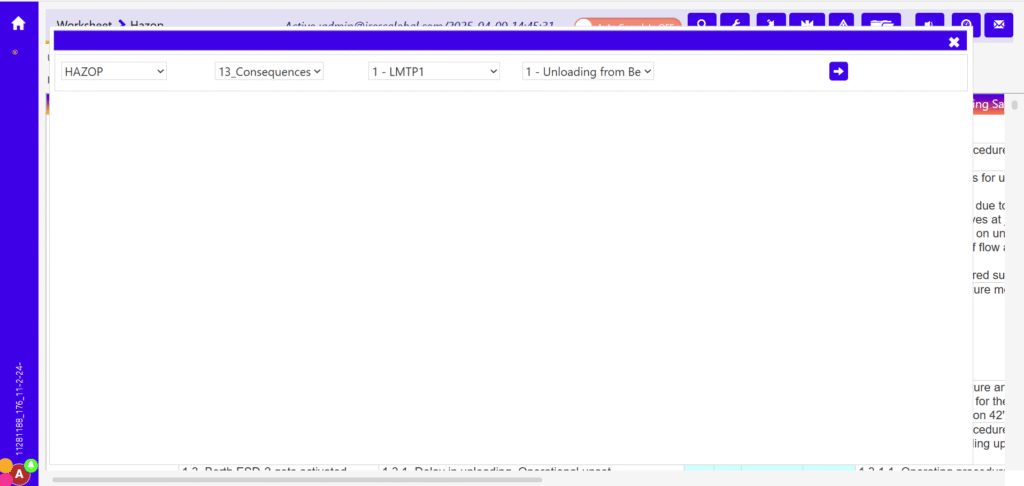
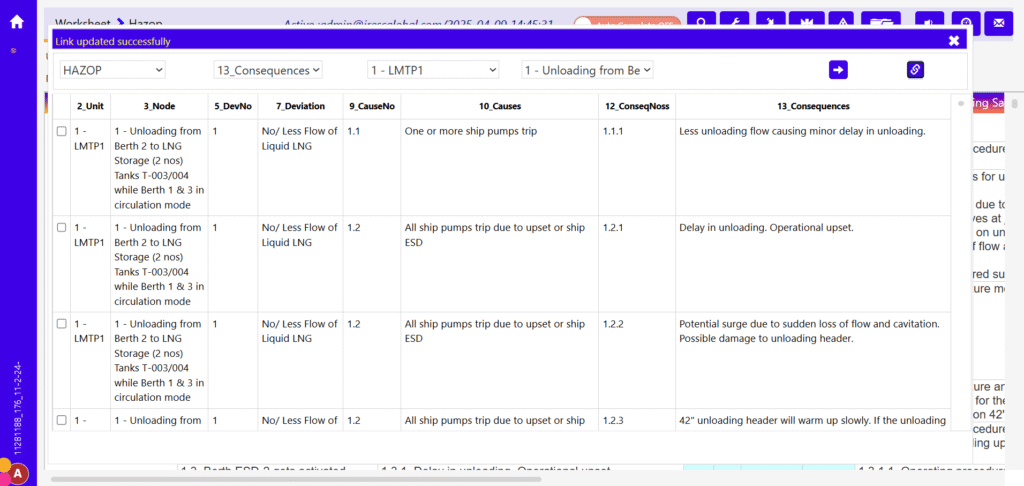
Hyperlink popup window loaded with worksheet names which are have column with auto no binding and its filters, at default it will selected current worksheet, current column name and current filters, if user wants they can change and click “Go” button
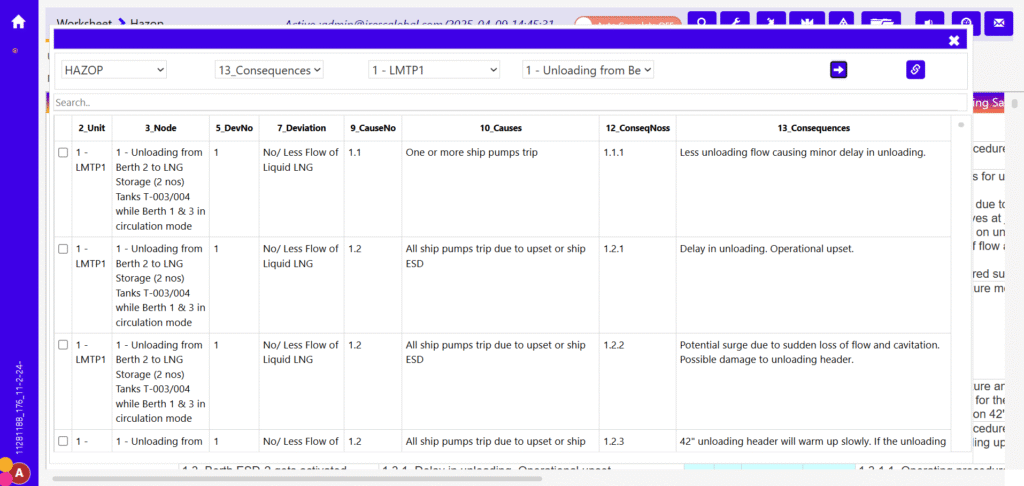
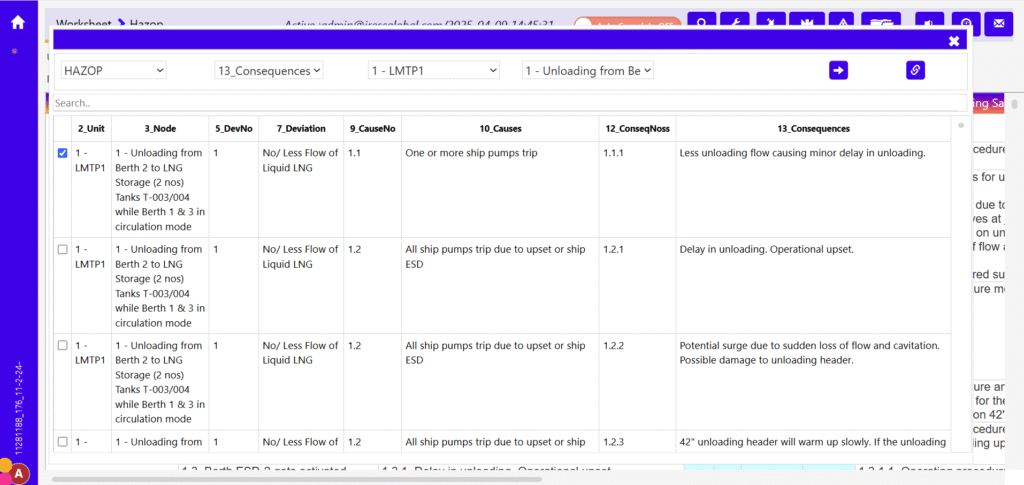
Data should loaded with selected column and its parent columns based on filter selection, User should select required data, they can use search column to find exact row
User should click “Set Hyperlink” button which is available in right top corner
Status message shown in top of popup window
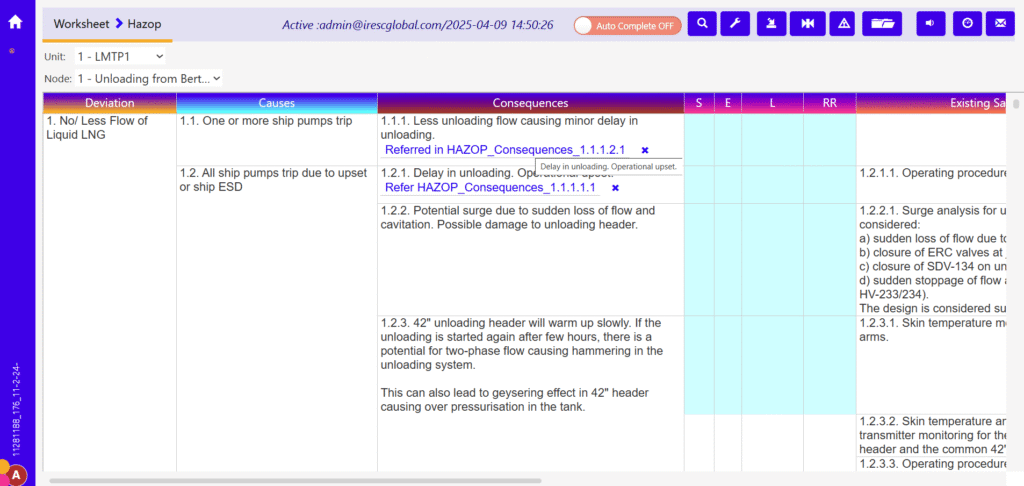
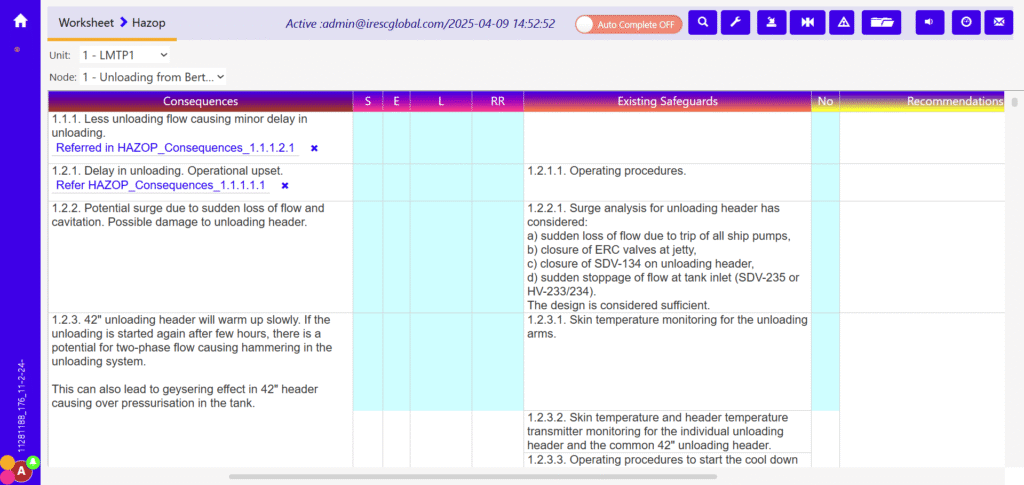
Once user finish set hyperlink then close popup window, link shown in selected field and cross reference field. Also selected content shown in link tool tip for reference
Once user click the link, then referenced worksheet loaded in same tab and page automatically scroll into required row and Referred content selected
If autoid was updated, then it automatically reflected into link
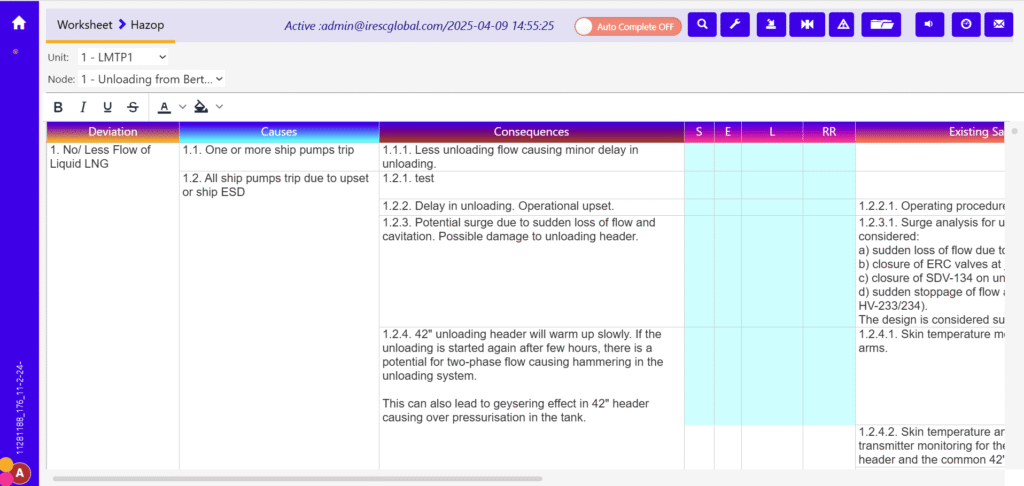
User can remove hyperlink with clicking of close button near link, it will remove both the link