Basic Data Entry/Edit can use the below key board shortcuts or context menu(on right click).
Insert Row Above/Below
Insert Row, will insert a new row from the position where the right click is happened till the end of it’s tree structure along with child.
Example:
In the above when the insert is happened from the point 1.1.2, the insert below will insert a new 1.1.3; meanwhile when the insert above is happened the new row will be inserted above 1.1.2 and it will become 1.1.2 and the old row 1.1.2 will become 1.1.3 as shown n below image.
Delete Row(s)
Delete Row(s), will delete the row(s) from the position till the end of it’s tree structure along with child. Before deleting the area going to be deleted will be highlighted in orange border and confirmation will be asked before deleting as shown below.
Clear Selected Cell Content
The data entered in the single cell (on which the focus is) will be deleted.
Select Tree
Select tree can be used to select the range that needs to be Copy/Cut/Delete.
Cut Trees/Paste Trees Above/Paste Tree Below
Cut Trees – Will remove the content from original location after the paste operation is done.
Paste trees Above/Below – will paste the copy/cut content to the destination.
Insert Column
This will insert a new column with default Text as input datatype as a last column of the current tree location.
Delete All Rows
This will delete all the rows in the worksheet along with the relation mapped with the top level filter(s).
Drag & Drop
The selected range of data can be dragged and dropped(move/copy ) to another location inside the worksheet. To do this follow below steps.
Select the range to be dragged by using select tree option.
The bottom border of selected range can be used to drag the selection.
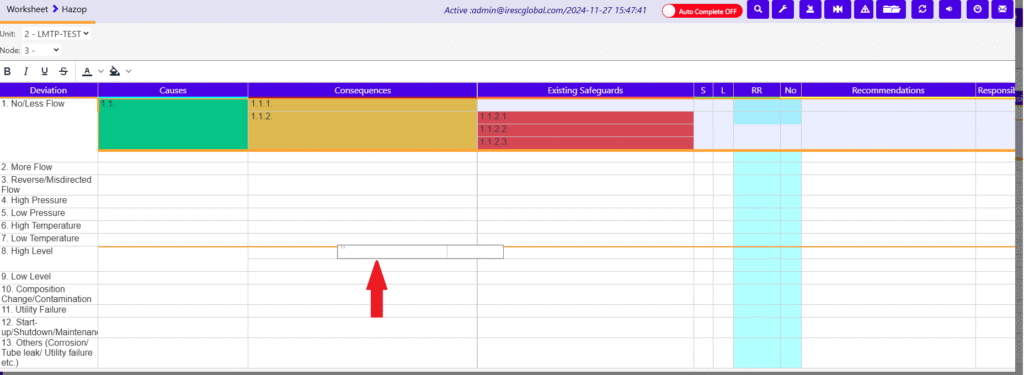
The rectangle box that moved along with the cursor shows the dropping location that is going to be.(as shown below).
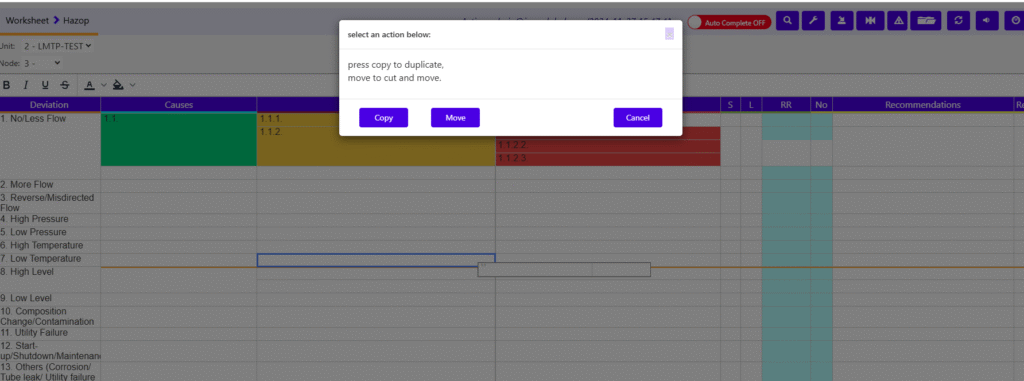
4. On drop the option of Copy/Move will be asked to user.(as shown below)
5. Upon users choice the action will be happened.
Undo Change
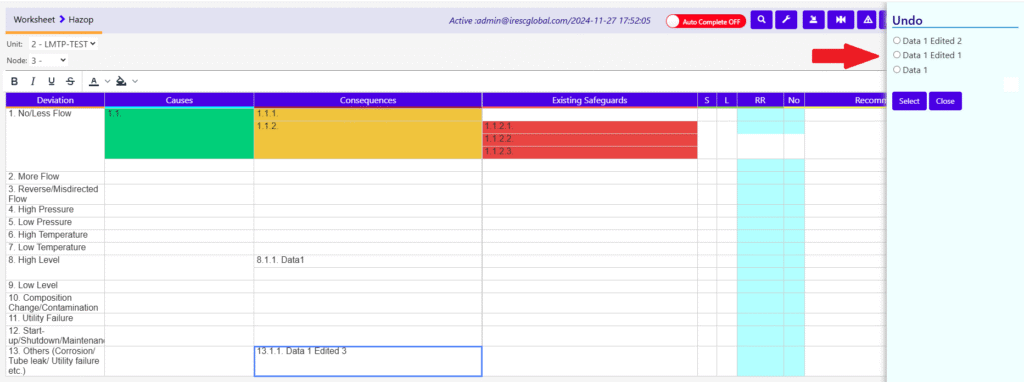
If there are previous data update happened in that cell, then the last 3 of it will be on the RHS as shown below and user can roll back to any of it by choosing there.