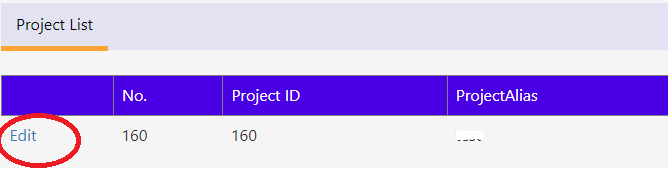
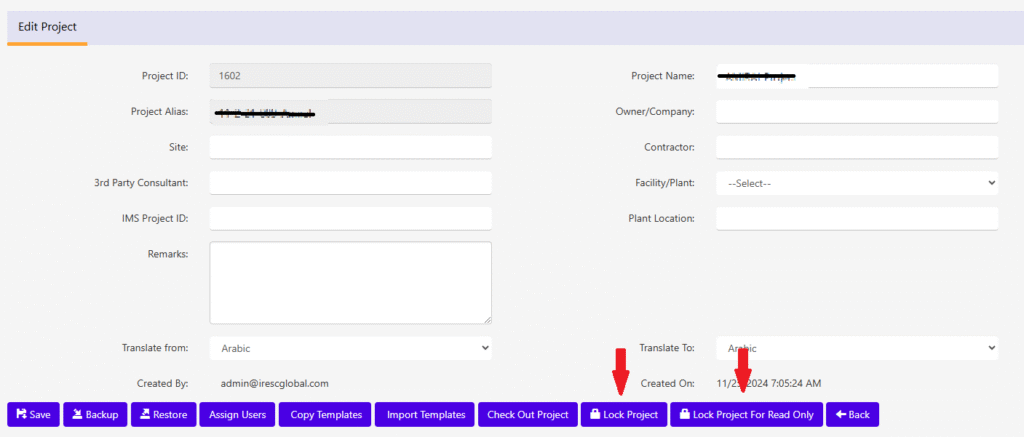
“Edit” in “Project List” will provide more details about project and its available features.
To do “backup”, click “Lock Project”/”Lock Project for Edit” button as shown in the image
1) Lock Project – No one other than can login to this project & unlock it.
2) Lock Project for Edit – User(s) who has assigned for this project can login & unlock but can’t edit any worksheet data.
Once the button is clicked, a confirmation will be asked before the project is locked as below.
On confirmation the project will be Locked/Locked for Edit. Once the project is Locked the Unlock option will be available in the Project Edit screen as shown below.
To unlock the Project click the “Unlock Project”/”Unlock Project for Edit”. Upon confirmation the project will be unlocked.