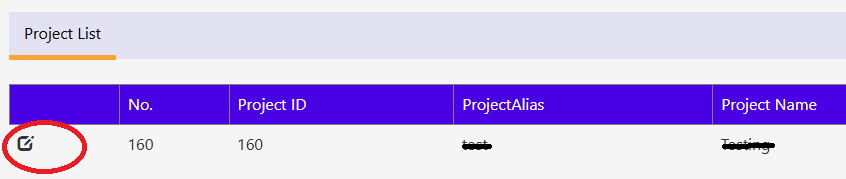
“Edit” Icon in “Project List” will provide more details about project and its available features.
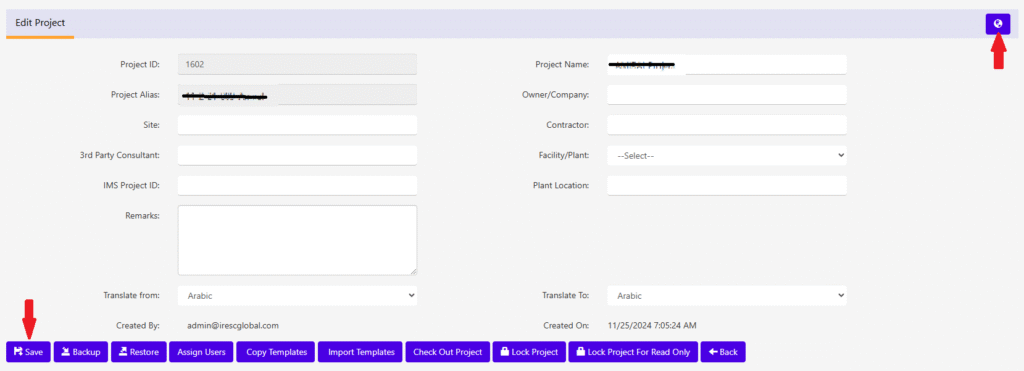
Screen below will be displayed to edit project details. Once the required changes done please click “Save” to save the changes.
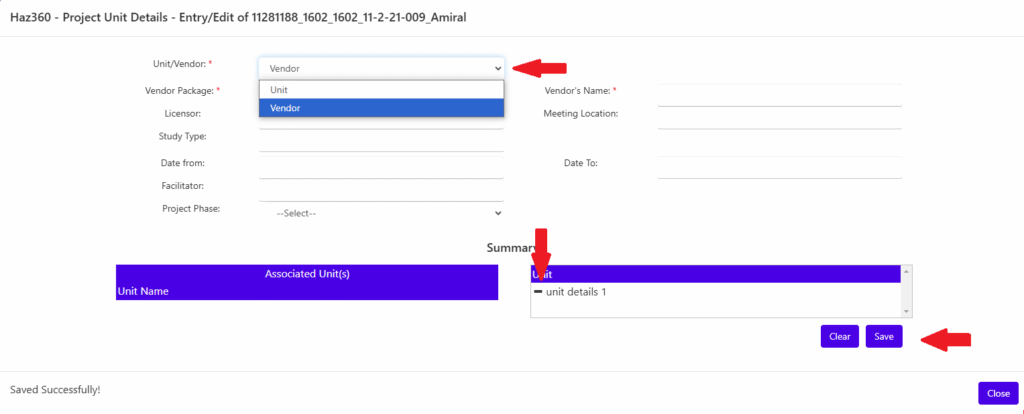
To edit the Unit/Vendor details of the project, click the globe icon on the top right corner. Screen below will be displayed.
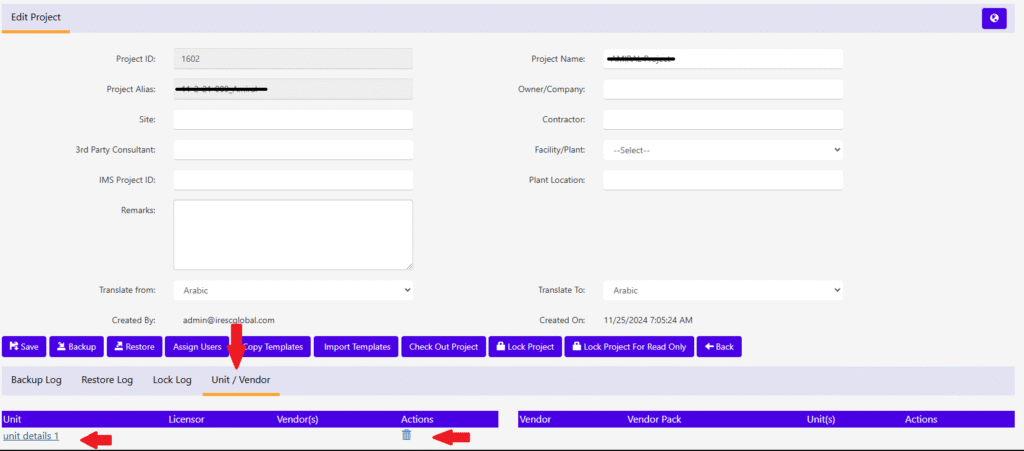
Enter the Unit/Vendor details and select the Vendor/Unit if any to be associated/disassociated from the RHS of summary. Press “Save” before closing the window to save the details entered. The list of Unit/Vendor details can be seen in the project edit screen as below.