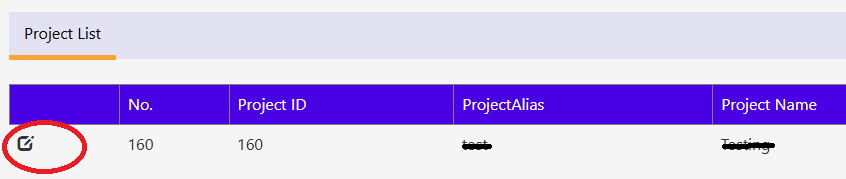
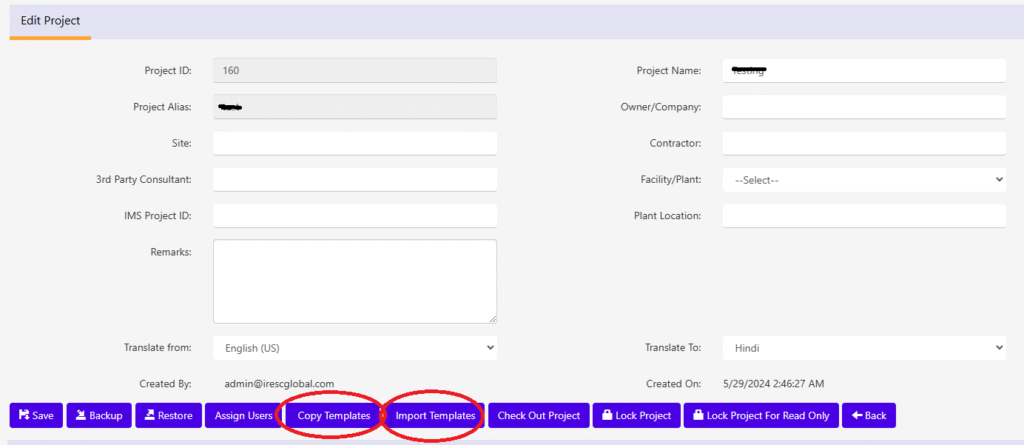
“Edit” icon in “Project List” will provide more details about project and its available features.
To Copy(from your projects)/Import(from Haz360) Worksheet Template(s) click the respective button.
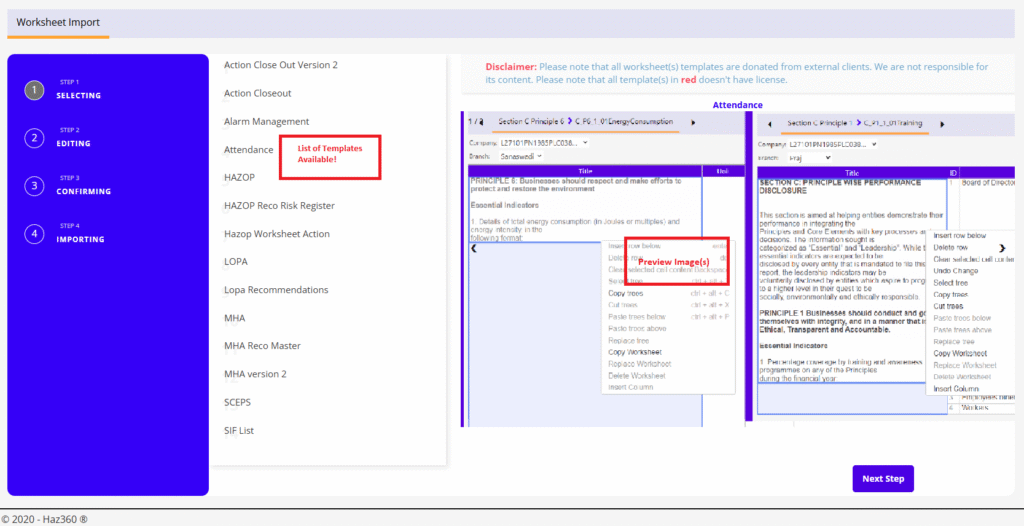
Upon clicking the a new screen will be shown as below. It shows the List of Template that is available for Import/Copy on LHS and preview image(if any) on RHS.
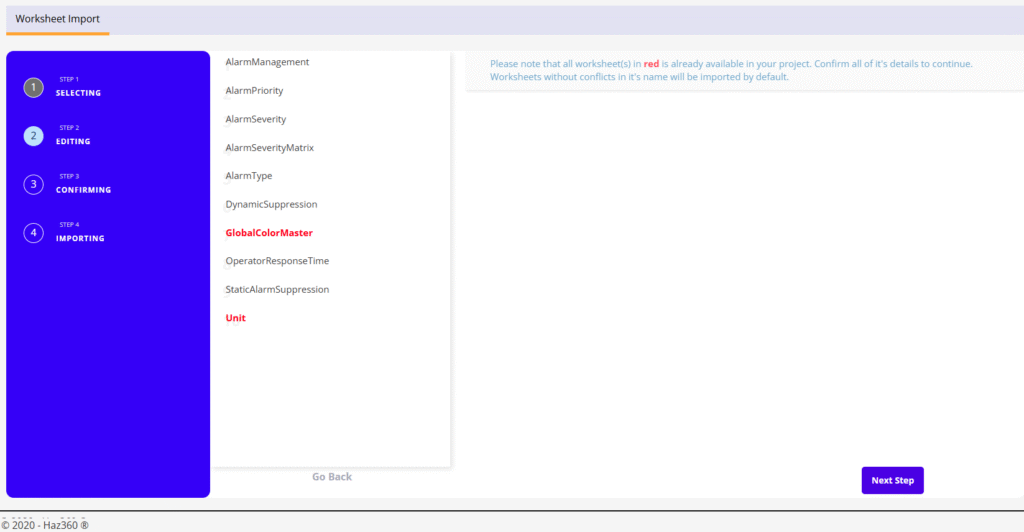
Once the template required is selected from the list click “Next Step” to continue. The screen like below will be shown. It will give you the list of Worksheet need to be included in that template.
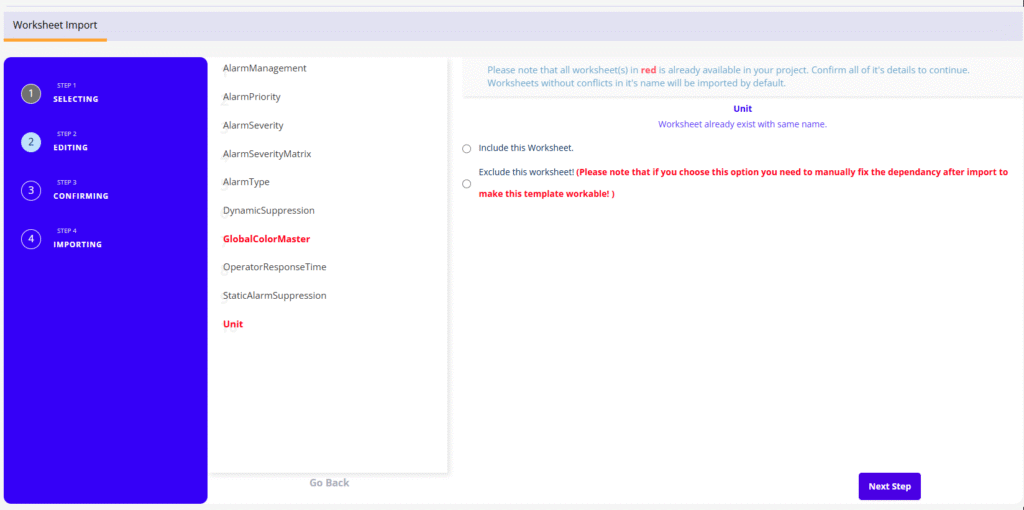
Note: The worksheet(s) listed in red color need to be taken care of!
To resolve the discrepancies on red colored worksheet(s) click on it. It will give give you more option(s) like below.
Include this Worksheet
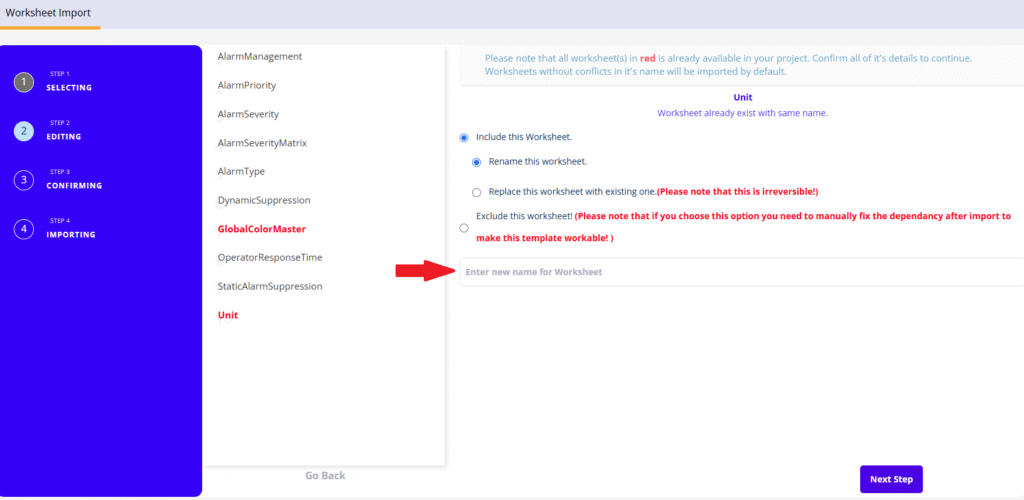
Rename Worksheet
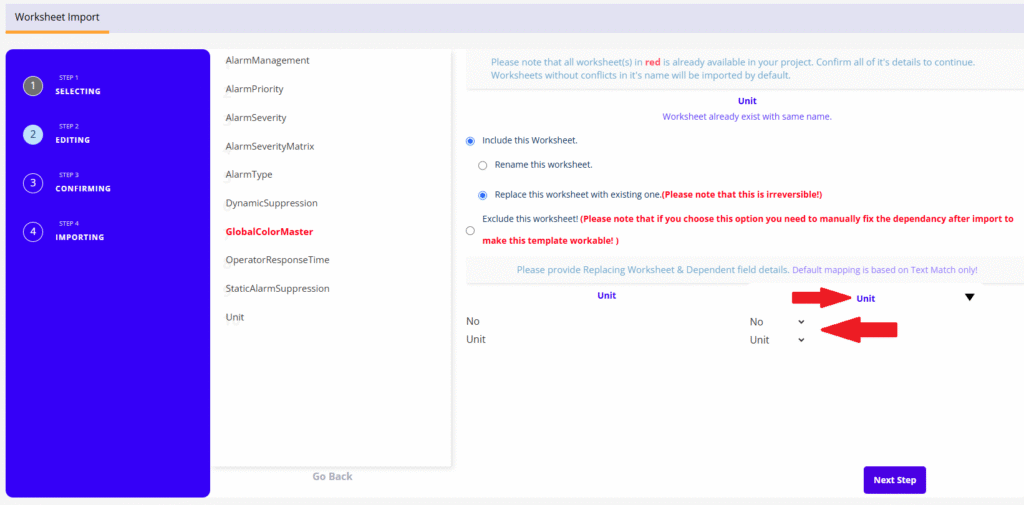
Replace Worksheet
Exclude this Worksheet
Note: Exclude worksheet will just ignore this worksheet and all it’s dependency mapping with other worksheet(s).
You can include the worksheet with new name as shown below. In this case all the internal mapping will be maintained as it is with other worksheets.
Replace worksheet can be used to replace the worksheet in template with the existing one in your project as shown below.
Select the worksheet and the mapping fields.
Note: Default field mapping will be selected on text match only.
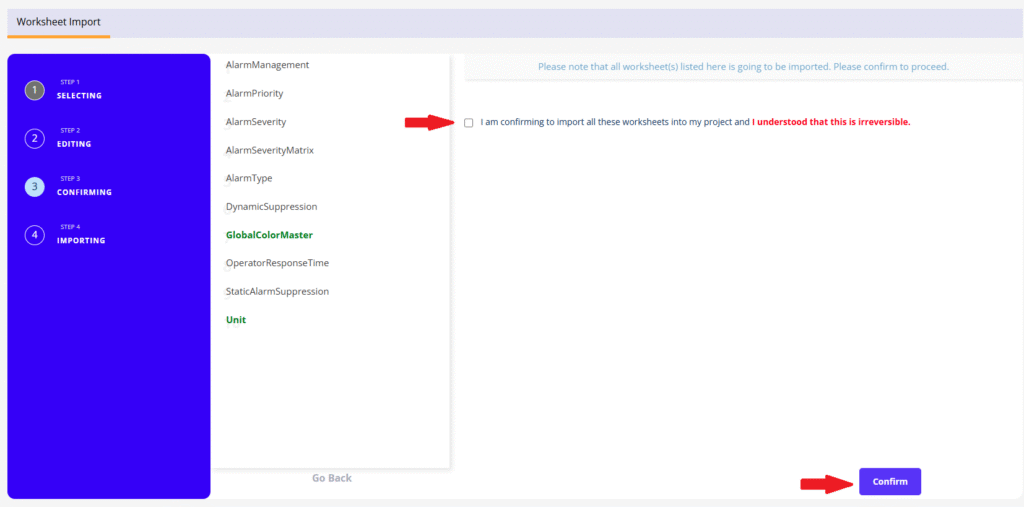
Once all the red worksheet(s) discrepancies are resolved click next to continue. Below screen will be displayed on clicking the Next button.
The green worksheet in list represents the worksheet in the current project linked to this template.
Check the confirm box and click the Confirm button to start importing/copying the template.
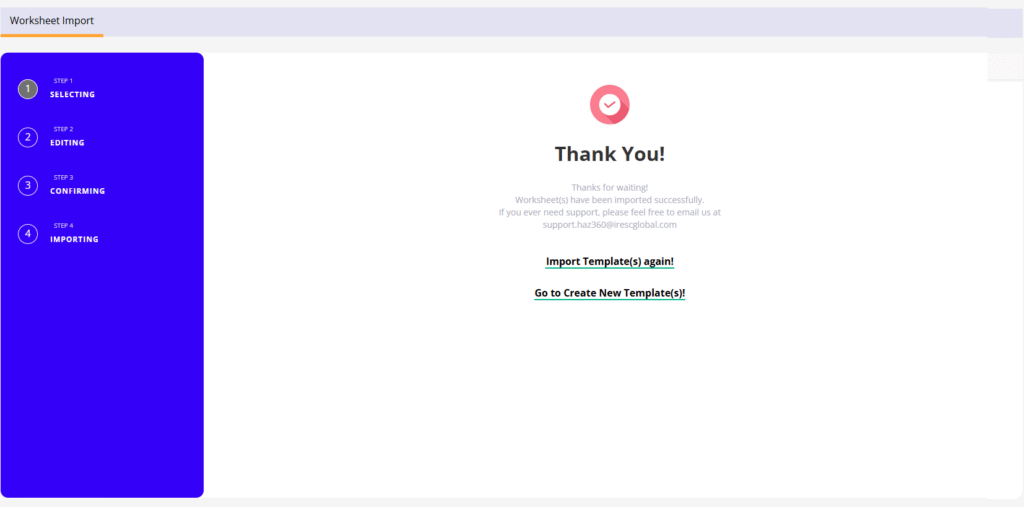
Please don’t close or refresh the screen until you see the above screen on success.