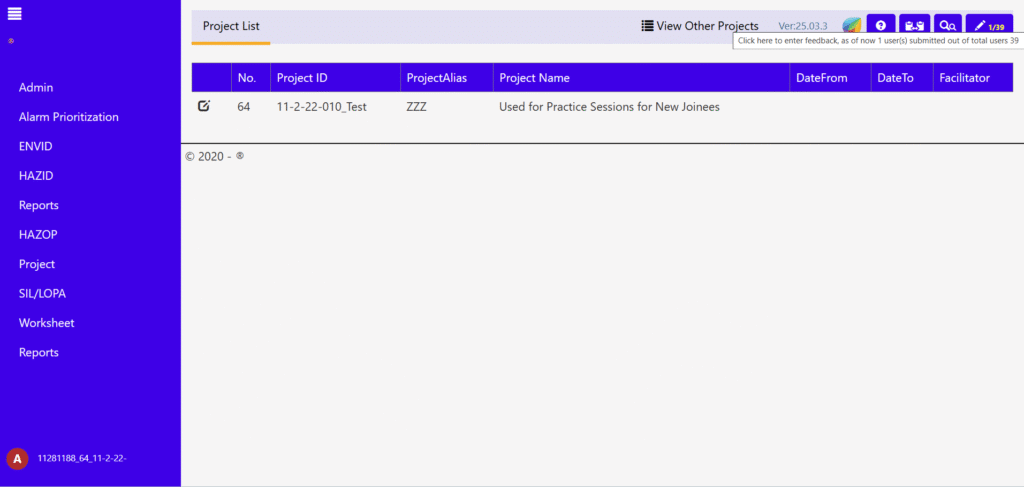
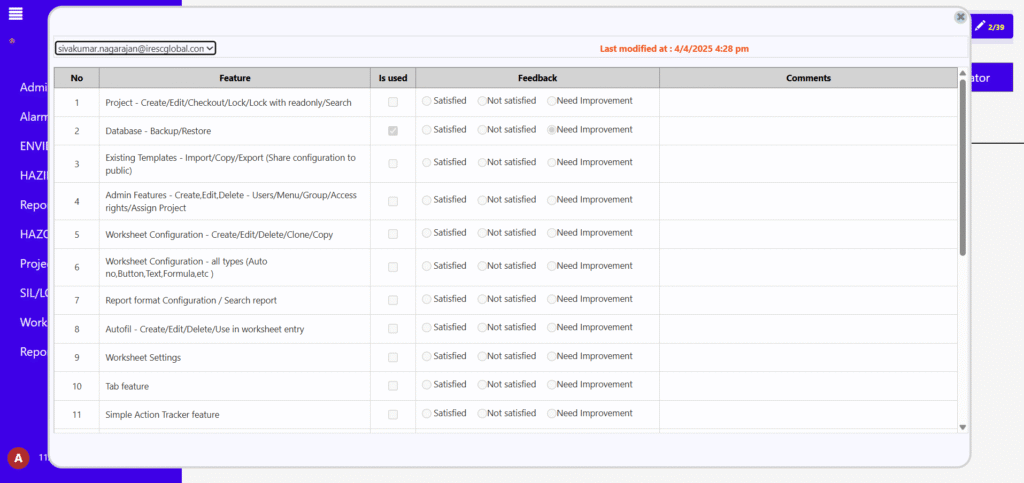
In the project screen, right top corner button available for enter feedback
It shows with count as Filled user / Total user assigned to that project. User need to click that button for open feedback popup
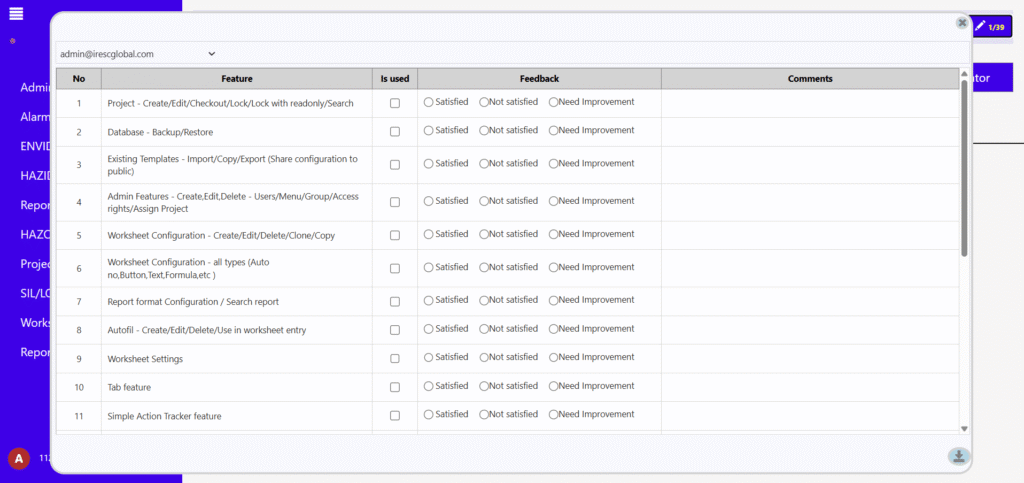
Once user click that button, then feedback popup will show. If login user is admin then user dropdown loaded with list of filled users and at default login user was selected. If login user is non admin then his user only load and selected
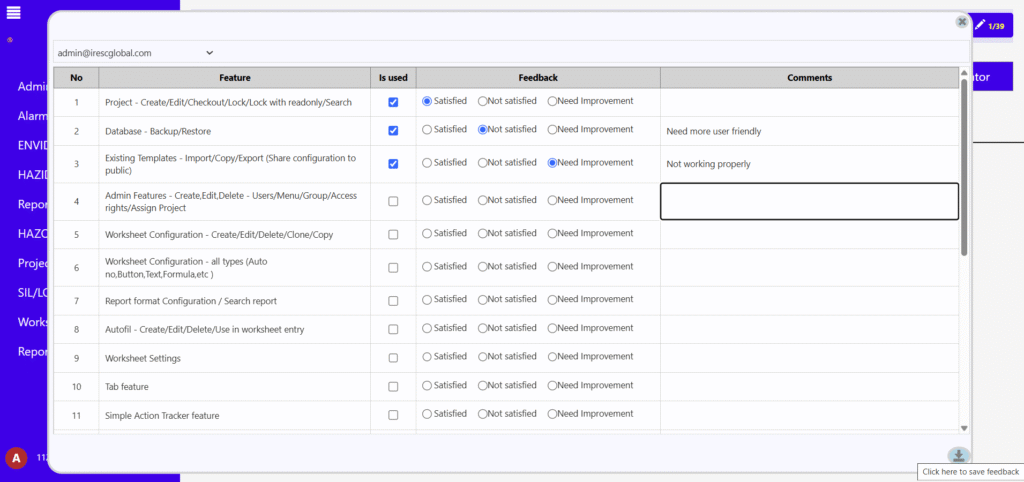
User need to update their feedback and click save button which is available at right bottom corner
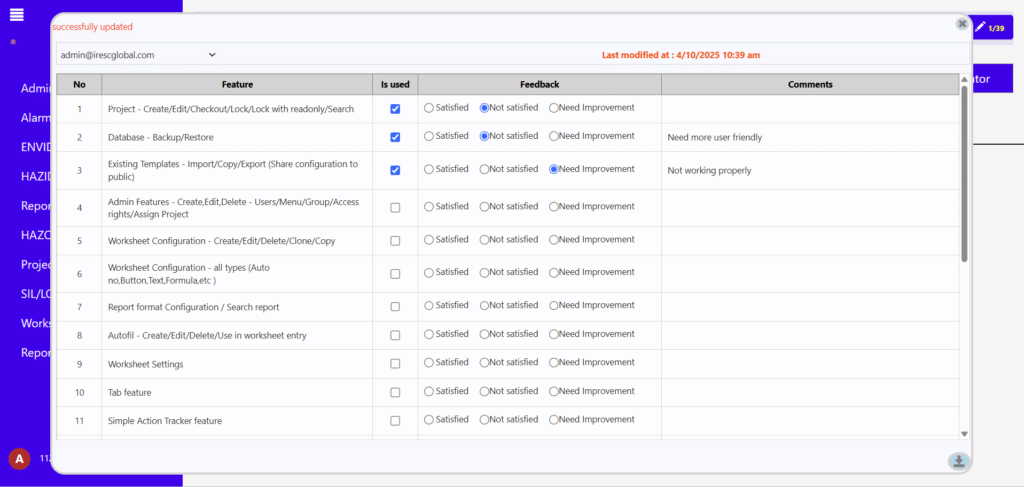
·Once user click save button, the updates were saved in database and message shown in left top corner and last modification time shown against the user
If user completed their feedback process, then click close button which is available in right top corner
If selected user not an login user then grid shown with read-only format
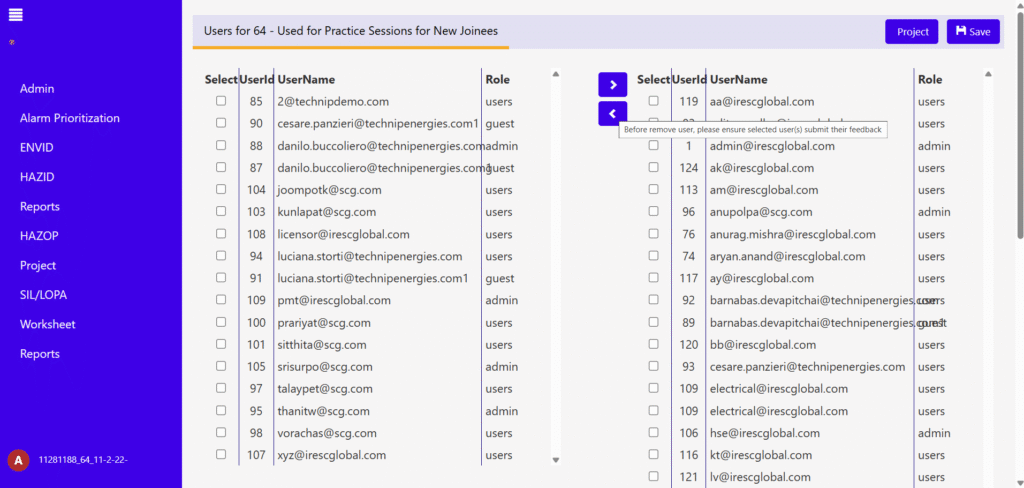
·Title shown in “Remove User” at “Assign Projects” screen as “Before remove user, please ensure selected user(s) submit their feedback” for intimate admin