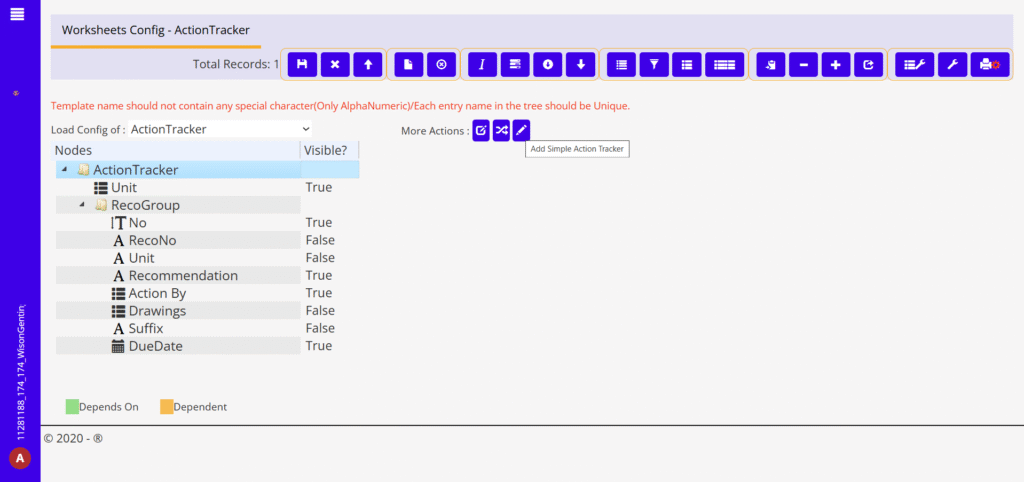
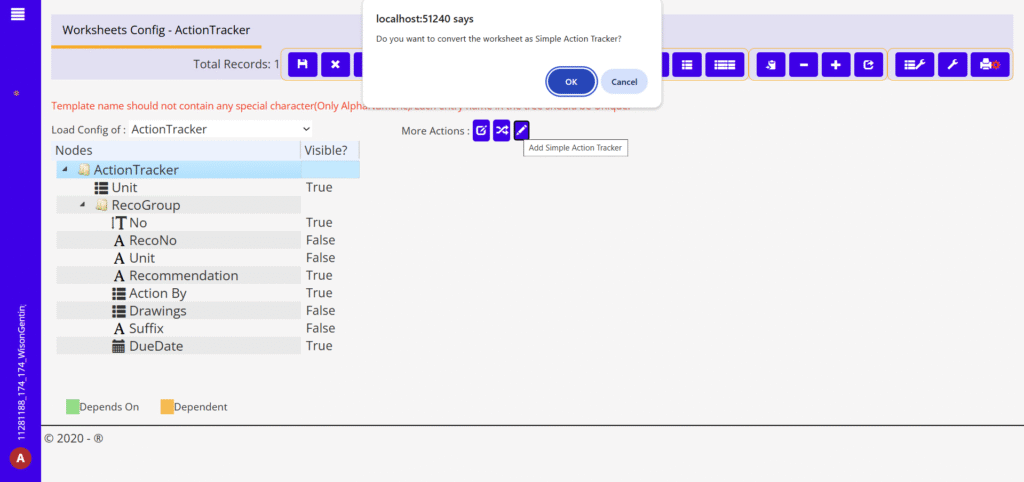
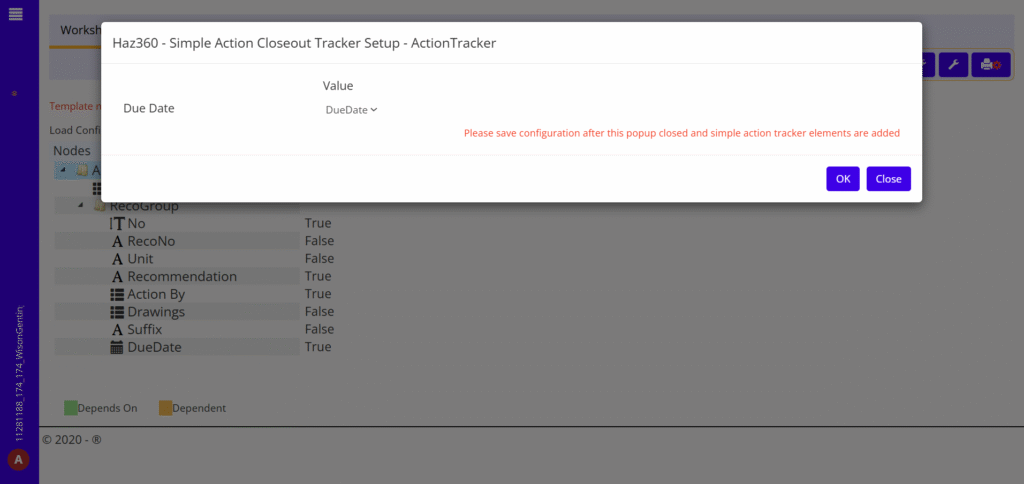
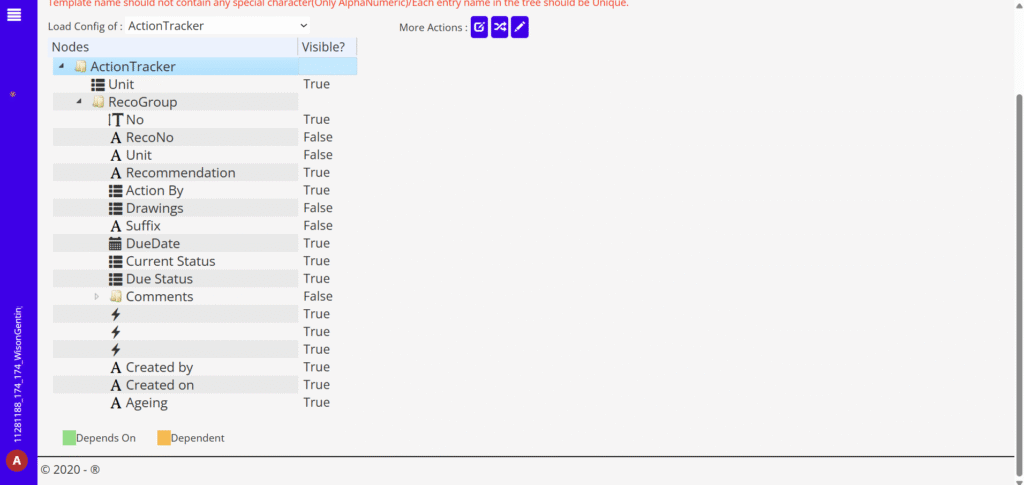
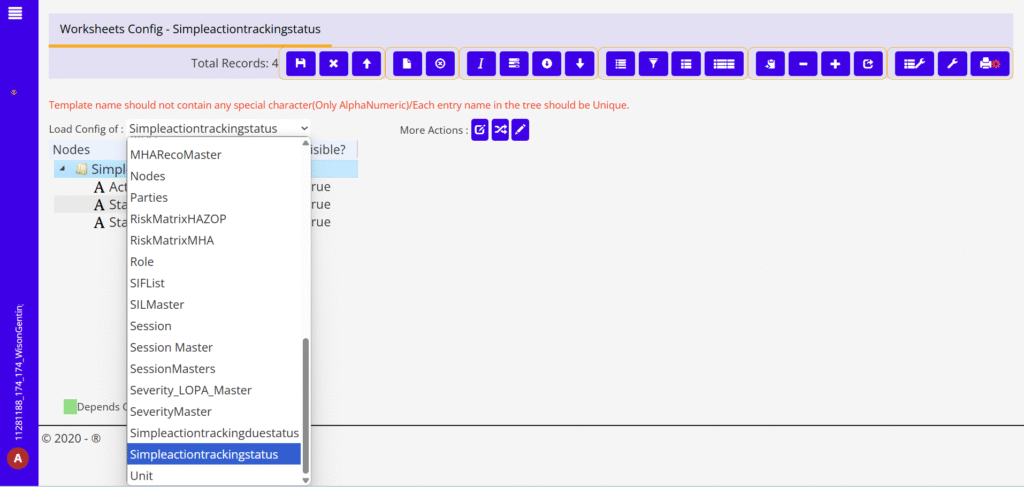
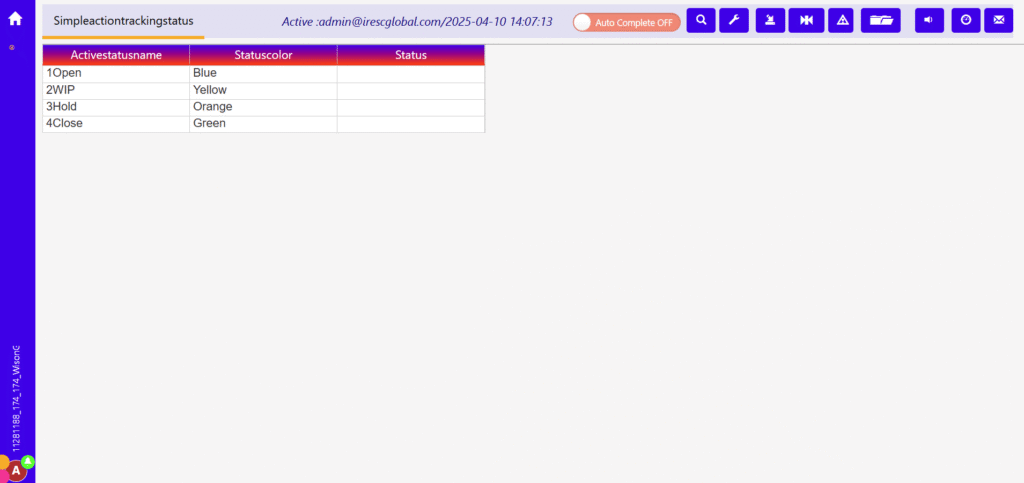
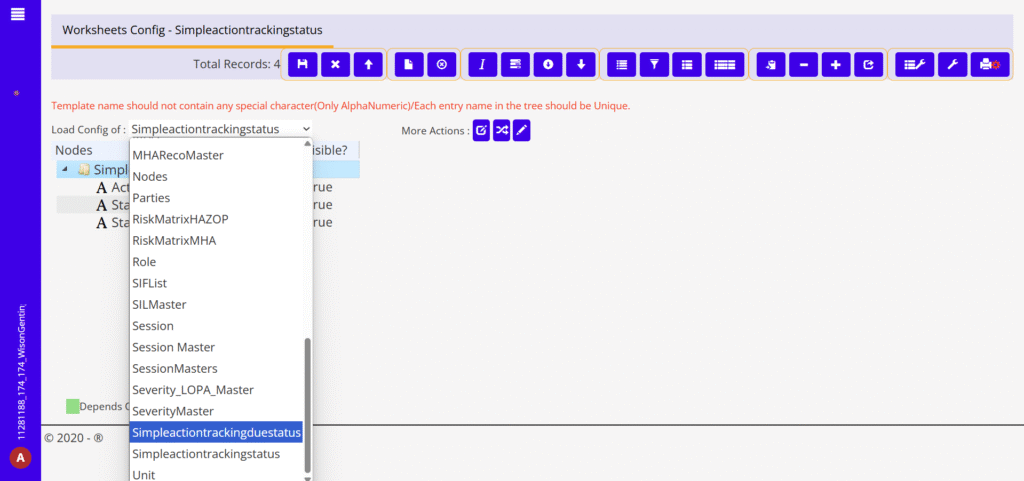
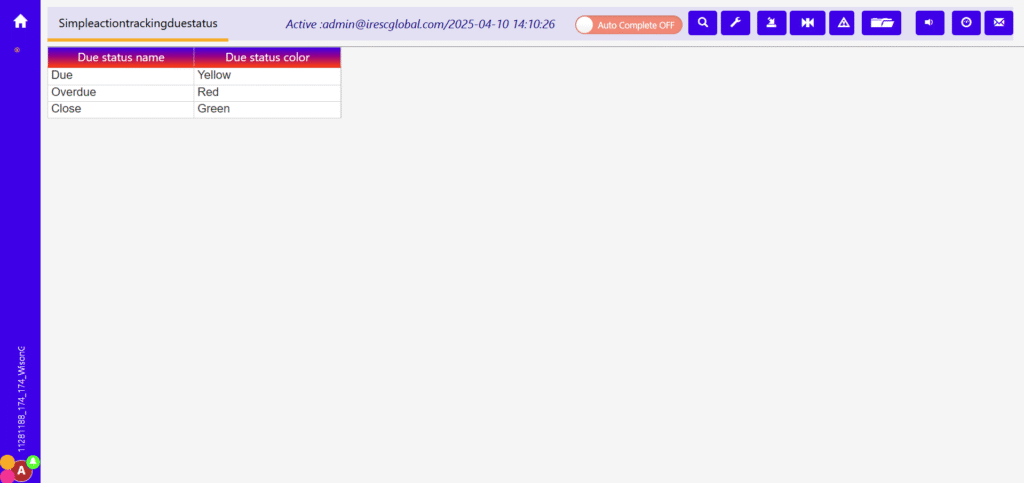
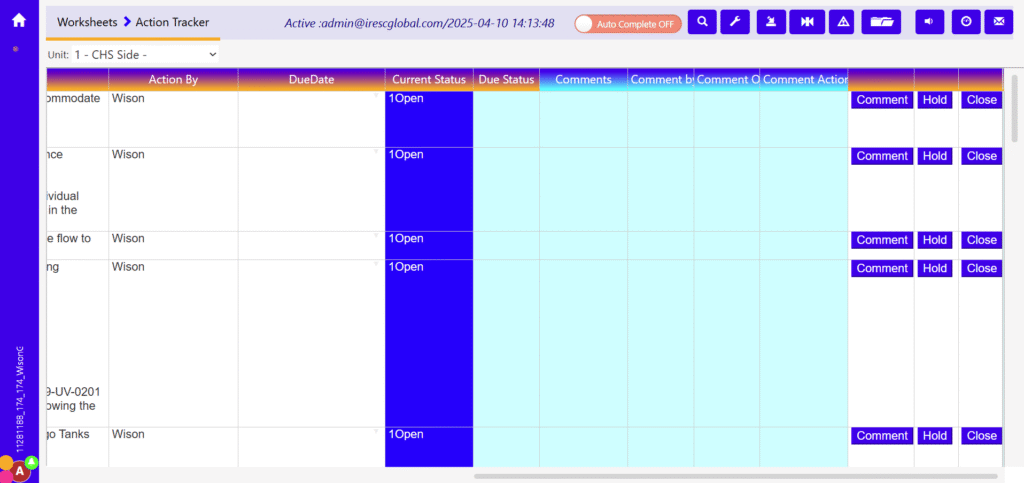
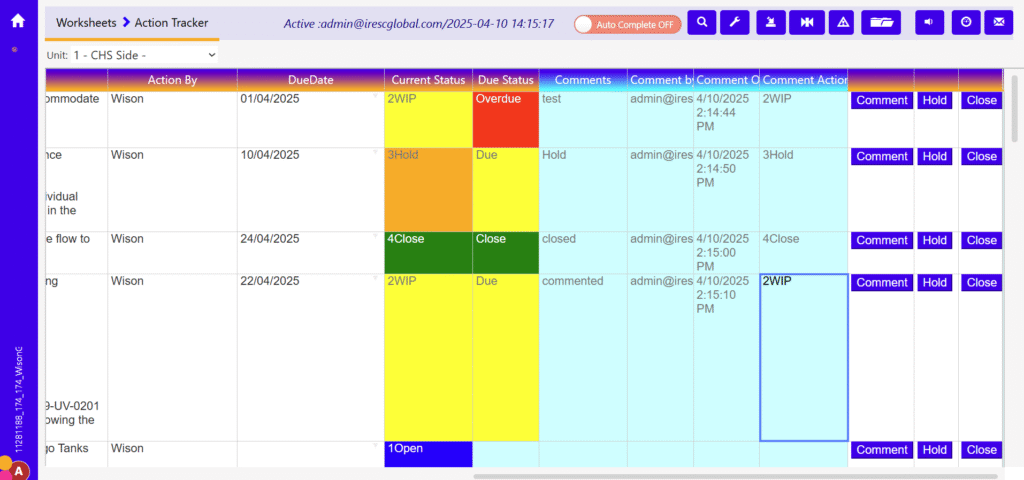
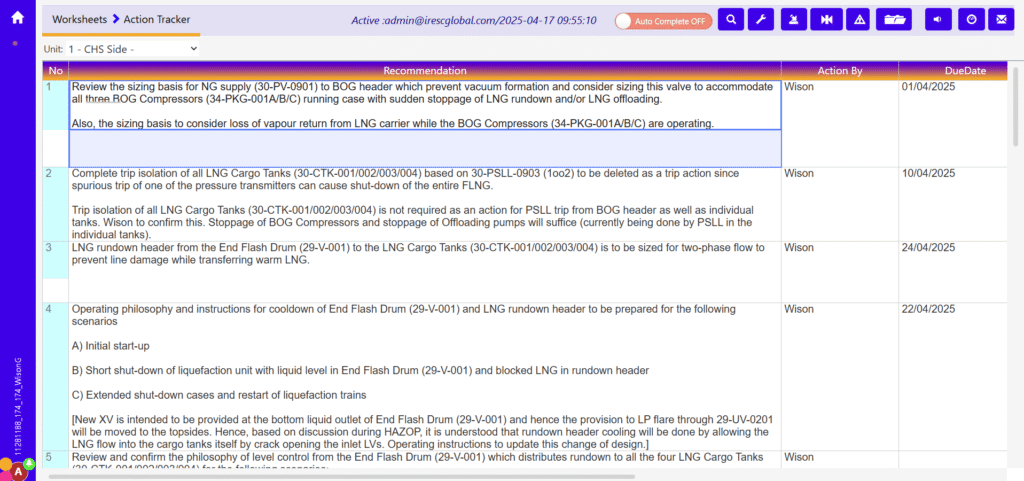
Configure Simple Action Tracker · Login to Haz360 website and load Tree view Config and select needed worksheet. Selected worksheet should have at least one date column · User should select top node from tree view · User should click “Add simple action tracker” button which is available in “More Actions” Once user click, then simple action tracker configuration popup will show · User has to map due date column, which is required for this process, and click “OK” button Once user click “OK” button, application automatically configure “Simple Action Tracker” in selected worksheet If user wants to change current status colour, then open “Simpleactiontrackingstatus” worksheet from configuration and click filter view. · If user wants to change current status colour, then open “Simpleactiontrackingduestatus” worksheet from configuration and click filter view · Now user can open that worksheet in filter view and started to enter comments against each and every row · Initially all rows current status shown with “1Open” · For add new comment, user should click “Comment” button and type text in “Comments” cell · For hold comments, user should click “Hold” button · For close comments, user should click “Close” button · Anytime user can able to reopen or unhold comments with confirmation · Application should not allow user to edit entered comments · Current Status, Due Status, Comment By, Comment On and Comment Action updated automatically You can add simple action tracker into any worksheet, but after add, in worksheet, none of the features available at right click context menu