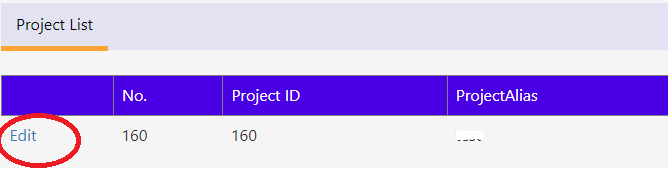
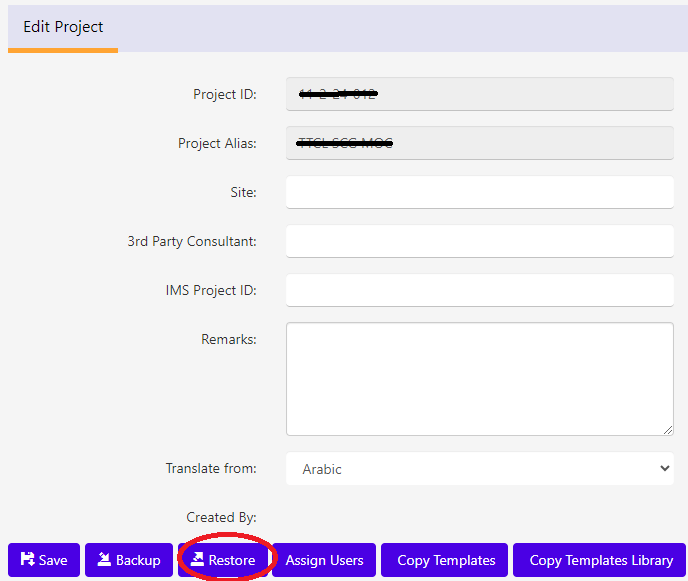
“Edit” in “Project List” will provide more details about project and its available features.
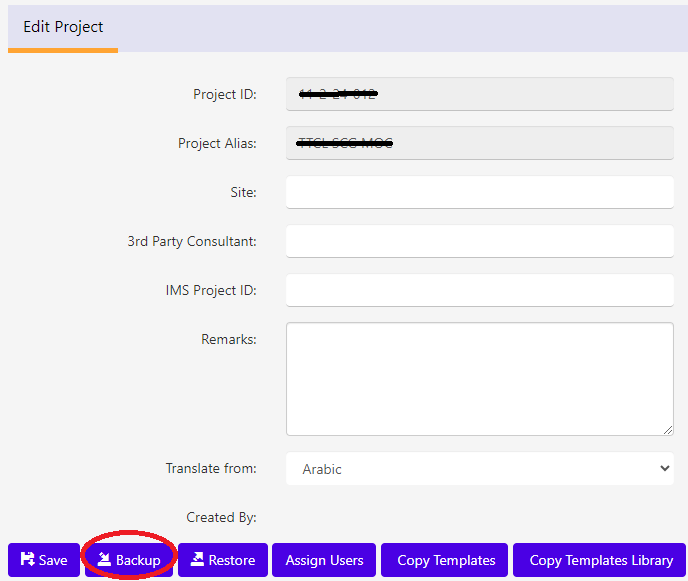
To do “backup”, click “Backup” button as shown in the image
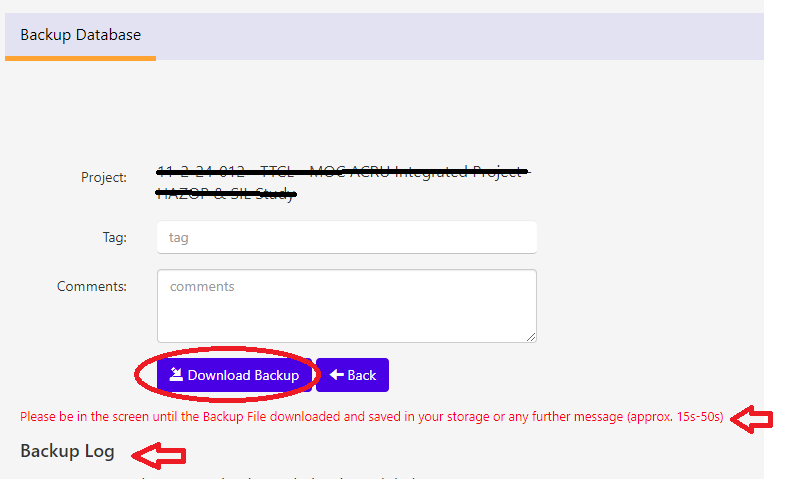
Upon “Backup” click a new screen will be shown as below. It shows the project selected for backup. User can input any “Tag” / “Comment” information (optional) followed by “Download Backup” click.
Note: Please be in the same screen until the backup file has been download either automatic or manually.
Once Project data backed up, the file will download automatic. Due to any reason, if backup not able to download, please use “Download” link to get download the file and save it for future use.
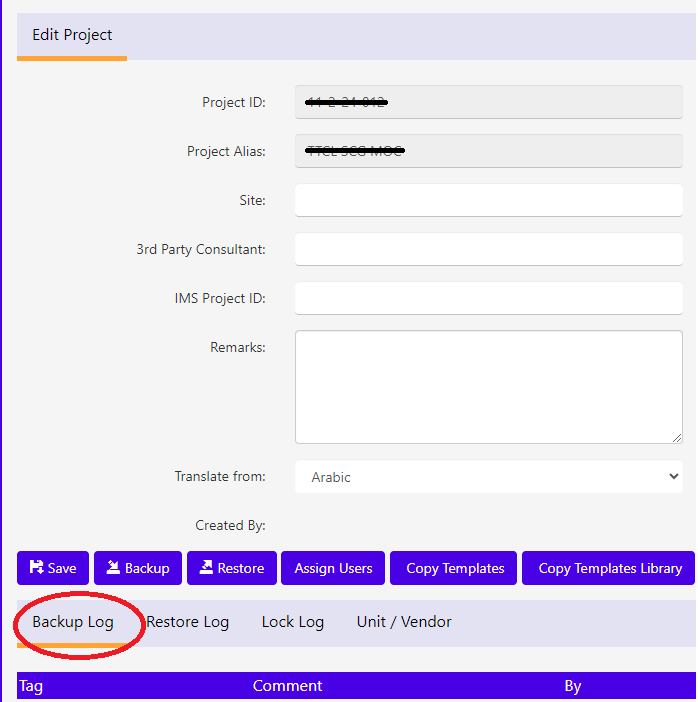
Every backup will be logged and visible to users under “Backup Log” screen, who can access the project.
To “restore” project data from backed up file, click “Restore” button as shown in the image
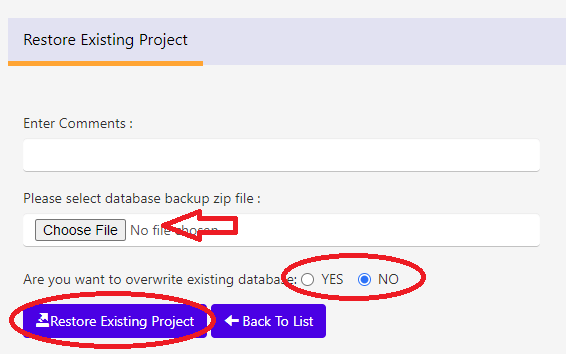
Upon “Restore” click a new screen will be shown as below. User can input any “Comments” (optional), upload the backup file by “Choose File”. User either overwrite the current data with backup or they can create new version of data. By default, new version of data has been selected. Click “Restore Existing Project” will restore the data and status message will be shown.
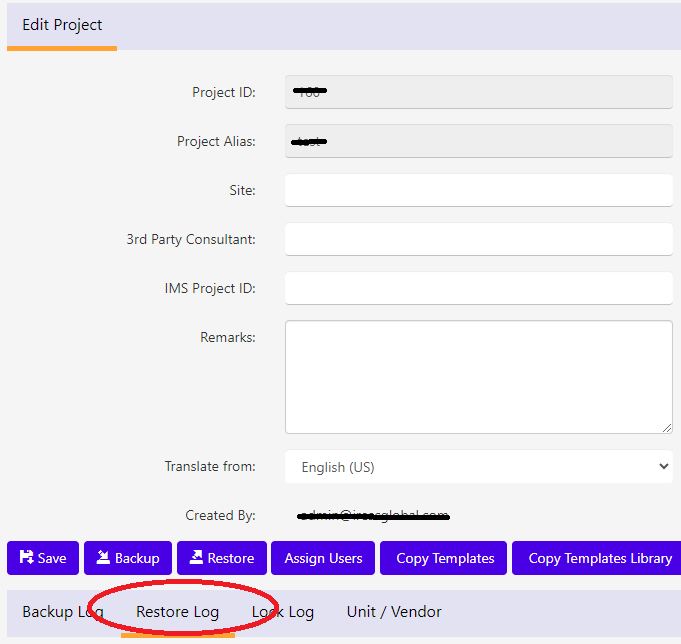
Every restore will be logged and visible to users under “Restore Log” screen, who can access the project.