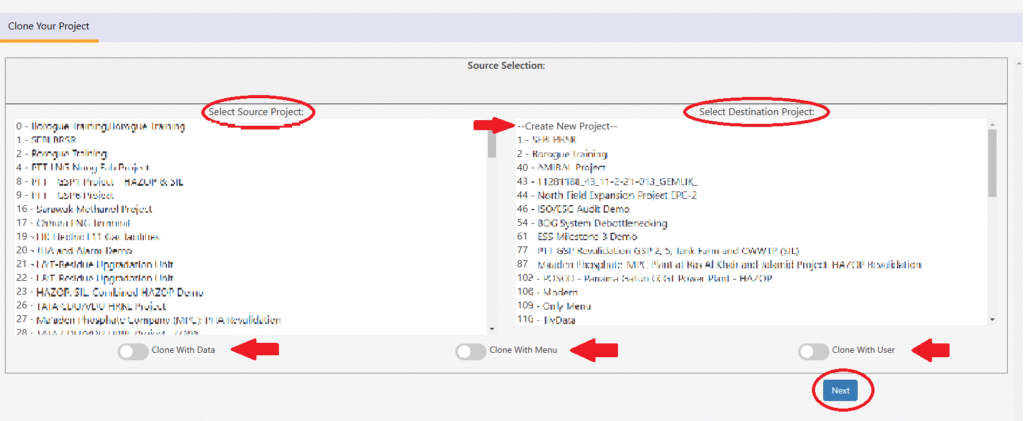
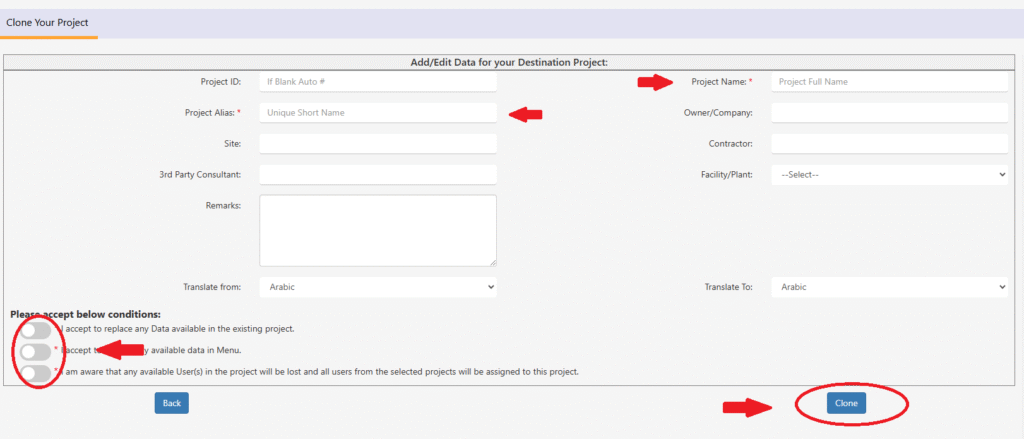
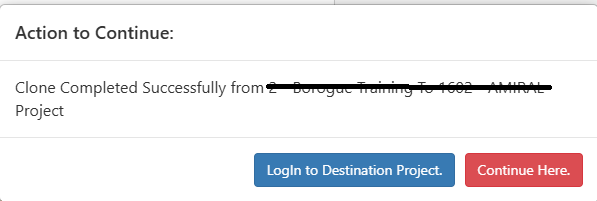
Project Clone “Clone” in “Project List” will provide more details about cloning project and its available features. To do “Clone”, click “Clone” button as shown in the image Upon “Clone” click a new screen will be shown as below. List of projects will be shown to select Source(which project going to be cloned) & Destination (to which project to be cloned). Note: Destination project can also be a new project creations.1) Clone with Data – Will copy all the worksheet data along with it’s template.2) Clone with Menu – Will copy all the worksheet menus available in source project to destination.3) Clone with Users- Will copy all the user details assigned from Source project.Once make your selection, press Next to continue. The screen below will be shown. 1) Provide the mandatory data of project.2) Confirm the options selected in previous screen.3) Click Clone to start the clone.Once the cloning is completed below message will be shown. Make the selection as per your requirement.