For enabling auto complete, below configuration need to be done
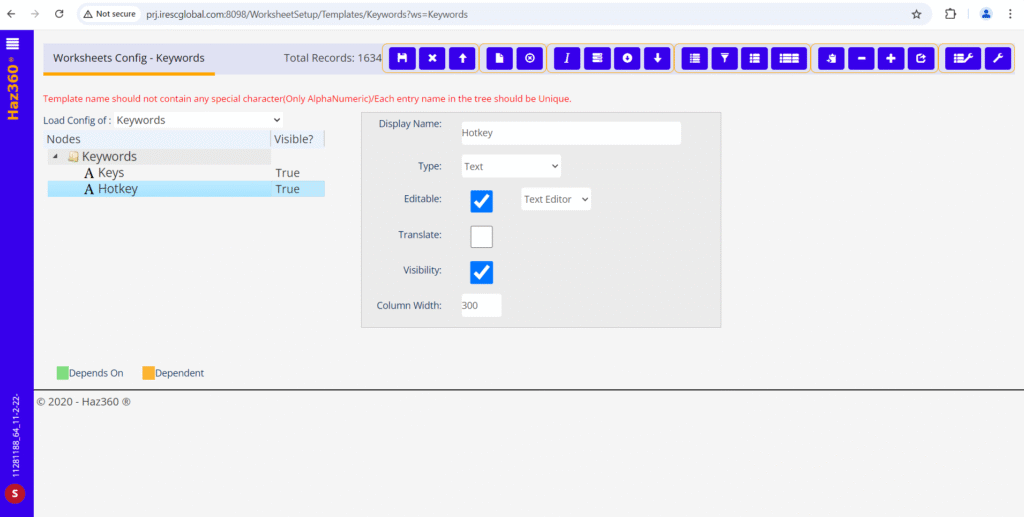
·Go to Tree view config and create new worksheet with name of “Keywords”
·Add two text field with name of “Keys” & “Hotkey” and save
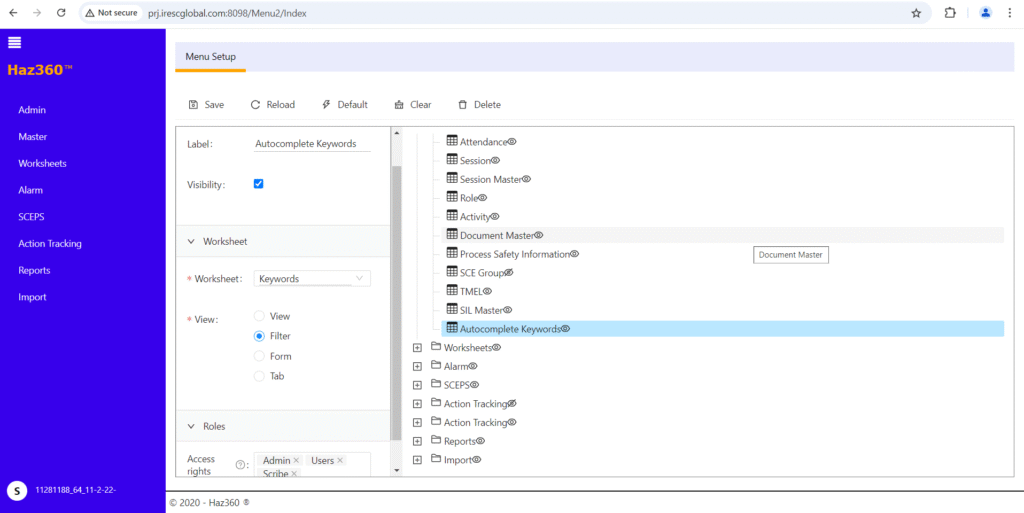
·Add that worksheet into menu and provide necessary access rights
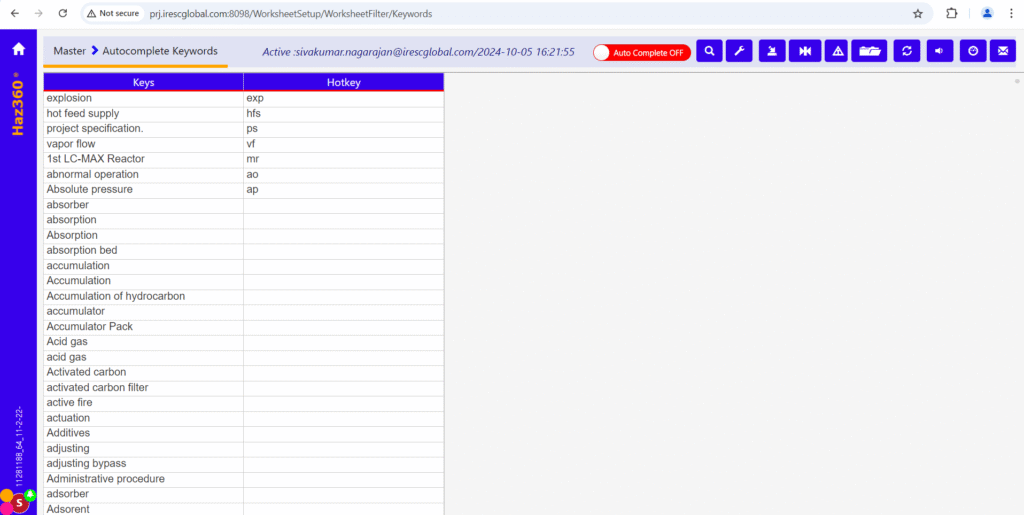
·From menu, open that worksheet and insert needed keywords against “Keys”
·“Hotkey” it’s an optional field
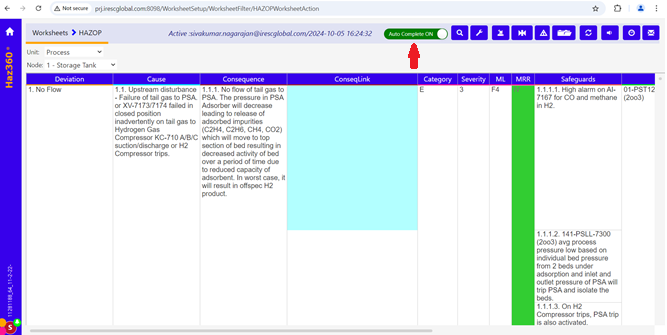
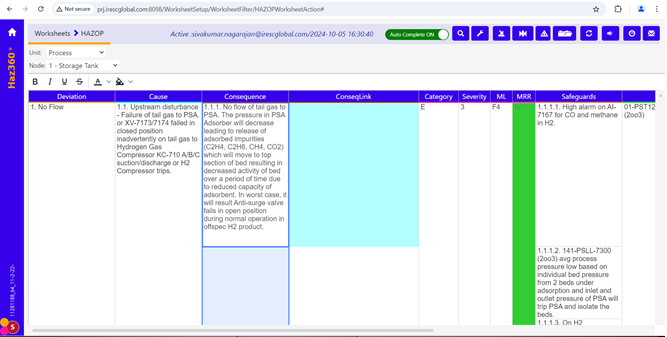
Switch on Auto Complete button which is available on top
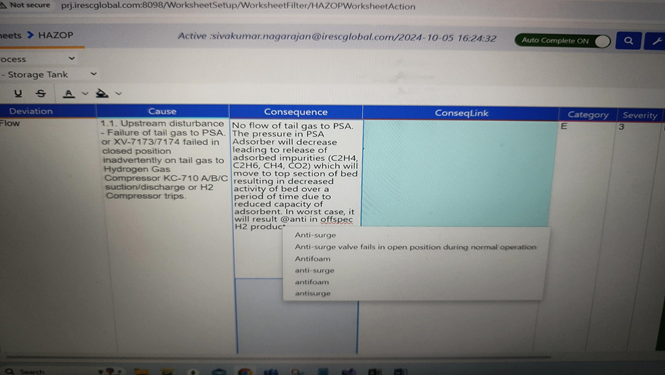
Click required cell and start to edit
If you want search keyword then type the first three letter of required text,. In 4th letter, if entered text match with existing keywords, then matched results shown in popup as shown below.
User can select required value and it will updated in cursor position
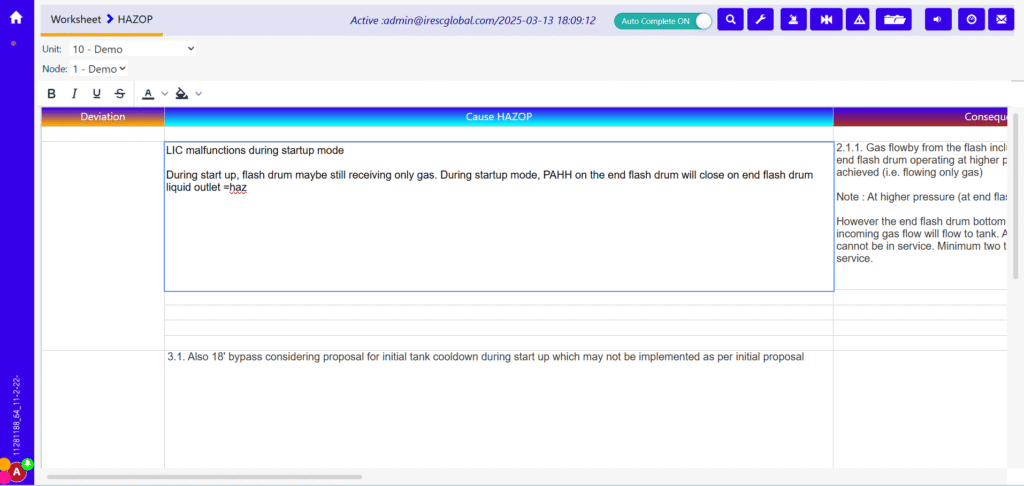
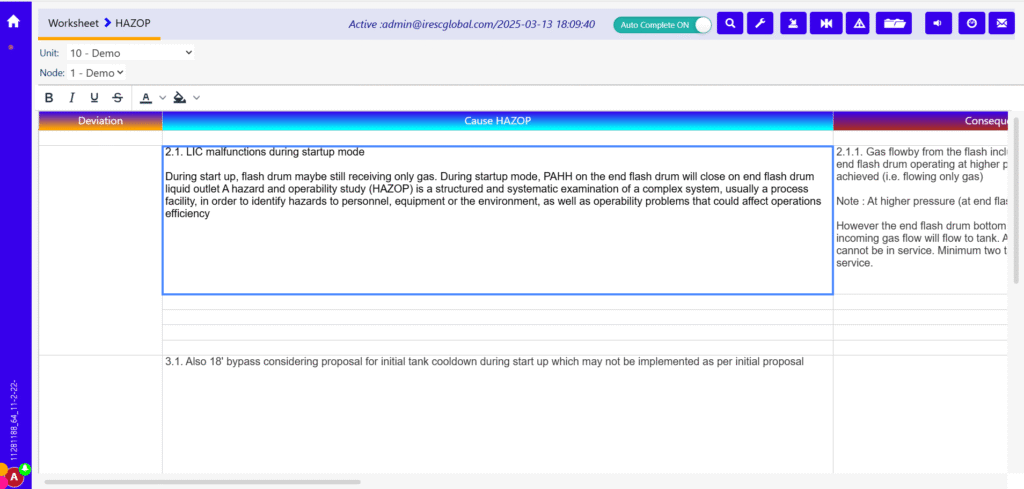
If user want to use hot key, then should entered keyword with “=” + text + “=”, for example if user enter “=haz=” then application search this text in “Hotkey”, if it is match, take that “Keys” value and updated in cell where cursor is located
If user use any navigation key in between first character to 4th character, then searching mechanism get reset, user should remove entered text manually and start freshly