Click below shown icon in Worksheet configuration screen.
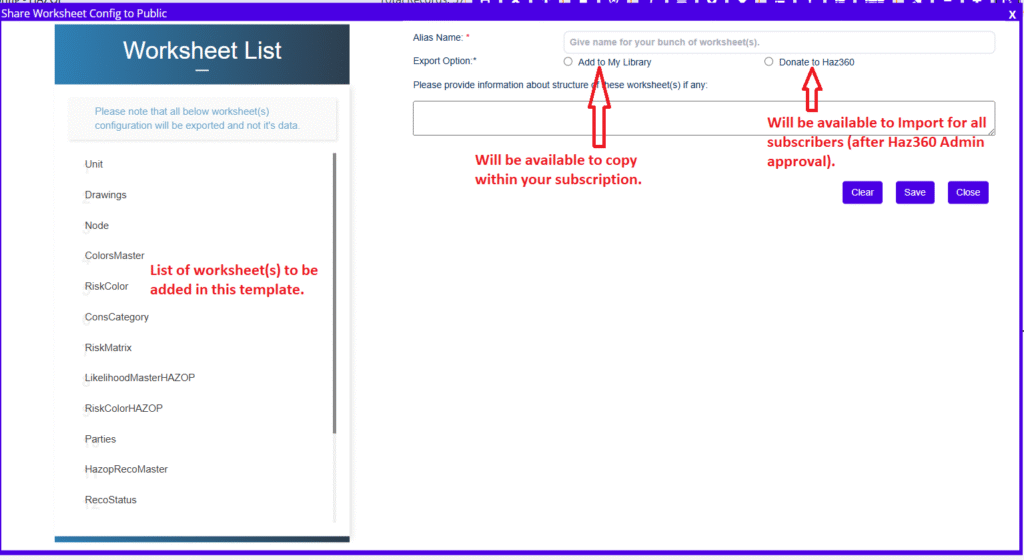
Screen like below will be displayed.
The LHS will show the list of worksheet(s) to be included the template. Follow the below steps to Export your template.
Step 1: Enter the name of your template.
Step 2: Select the export option.
Add To My Library – This option will export the template to your library and it will be available to all the users & project in your subscription to copy use it.
Donate to Haz360 – This option will export the template to Haz360 library and it will be available to all the users/Subscriber(s) of HAz360 after approved by Haz360 Admin.
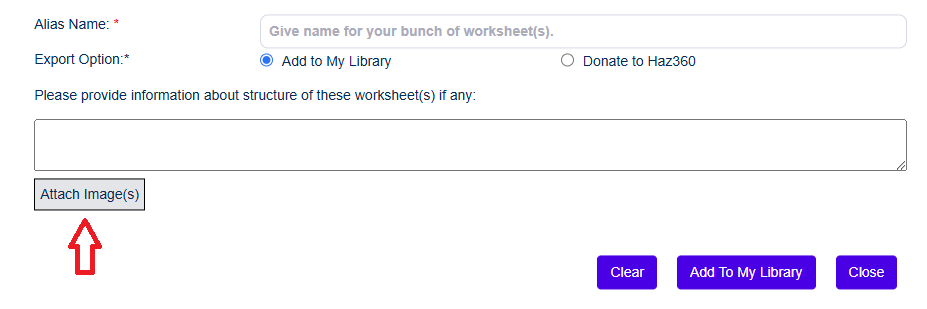
Upon selecting the option, the image upload option will be displayed as shown below.
Step 3: Enter the Remark for this template.
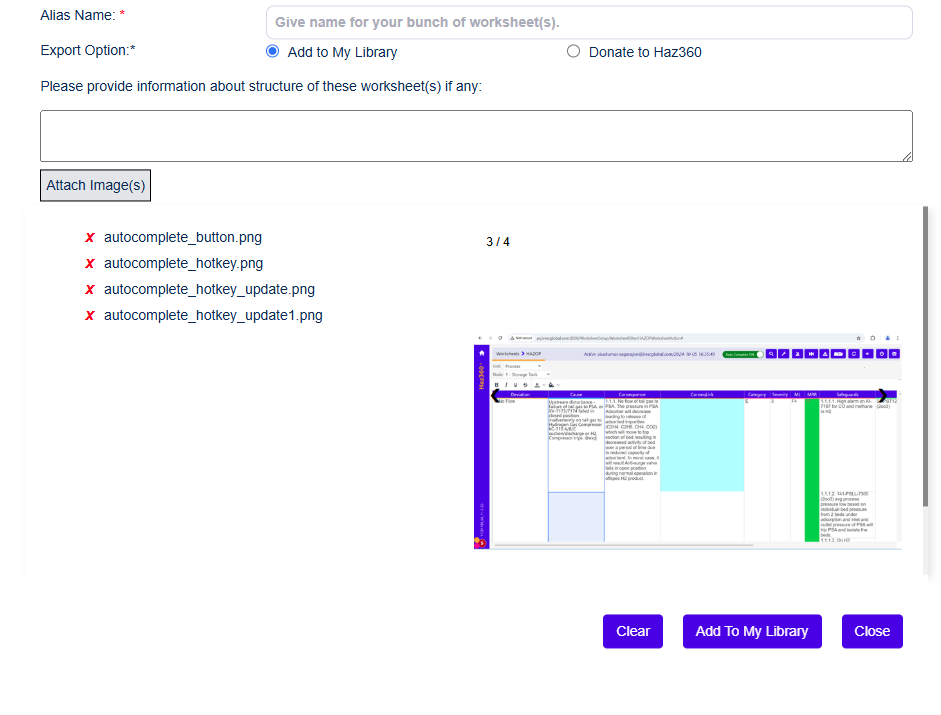
Step 4: Upload preview images for this template if any. If uploaded you can see preview of that images and X icon to remove the image as shown below.
Step 5: Upon confirming click the Add To My Library/ Donate to Haz360 button to complete the process.
Note : The worksheets with version 1 configuration are restricted to export. In such case please reach out to us for help.
Sorry for such inconvenience & Thanks for your understanding.